


Block is a 3-dimensional visualization program for viewing regularly gridded data or spatial data points and lines (Both cannot be viewed at the same time). It is included in the UNCERT software as a tool to view the values in a three-dimensional arrays as three dimensional blocks. This package is used to view gridded block data generated from grid (Chapter 10), or for examining output from sisim (Chapter 14), modmain (Chapter 15), and mt3dmain (Chapter 16) files.
The block application is composed of five sections (Figure 13.1); the main menu- bar, the slider bar area, the block orientation block (upper right), the log/status area, and the drawing or graphical area. The menu-bar is used to select all block commands and the drawing area is the display area for the rendered blocks. Three slider bars are also present to shift the color palette, and to tilt and rotate the block (These sliders are discussed in more detail in the Palette and View:Parameters menu sections below). The log/status area is used by the program to report important messages or results. In the orientation block, the arrow points to map north.
Open:
Selecting File:Open generates a pop-up dialog which allows the user to select an
existing data file. This dialog operates exactly as the Open:File dialog in Chapter 5
(plotgraph Figure 5.2). However, unlike plotgraph the default data file extension is
*.bck.
Open SU:
If block has been compiled with the -DSU compile option (See Makefile in source
directory), the File:Open SU menu option will be active. This option allows "Seismic
UNIX" (Cohen and Stockwell, 1994) block files to be loaded. Selecting File:Open SU
generates a pop-up dialog shown in Figure 13.2, which allows the user to select a SU
data file and specify the number of receiver lines and receivers per line. The default
data file extension is *.su.
View:
File:View pops up a simple screen editor with the last saved version of the file
being graphed.
Save Preferences:
When using programs with many user options, it is not possible for the program
to always pick reasonable default values for each parameter or input variable. For this
reason preference files were created (See Appendix C). These allow the user to define a
unique set of "defaults" applicable to the particular project. When File:Save Preferences
is selected, block determines how all the input variables are currently defined and
writes them to the file "block.prf."
If "block.prf" does not exist in the current directory, it is created. This is an ASCII file and can be edited by the user. See Appendix C for details.
Print Setup:
File:Print Setup works exactly as explained in Chapter 5.
Print:
File:Print generates a Postscript file of the calculated spatial measure, and
depending on how the print options are defined in Print Setup, directs this file to the
specified print queue, or to the specified file.
Quit:
File:Quit terminates the program, but if additions have been made to the graph,
the user will first be queried to supply a file to save the changes in.
Exaggeration controls the vertical exaggeration of the map block. Exaggeration is a multiplicitive factor, therefore legal values are greater then 0.0; 1.0 will give the true relief, values between 0.0 and 1.0 will reduce the exaggeration, and values greater than 1.0 will increase the exaggeration. With many data sets it is useful to substantially increase or decrease this value. If the block appear flat, the difference in z values is small compared to the horizontal distances covered by the may; in this case the exaggeration should be increased. If the block is tall and thin (in the extreme case a vertical line extending off the top and bottom of the screen) the exaggeration should be decreased.
The Angle Above the Horizon and the Angle From North refer to the viewers reference to the block. In block the viewer is always looking down on the map block, and the Angle Above the Horizon describes viewers viewpoint as an angle above the horizontal; 90o is looking straight down on the block (plan-view map), 0o is looking horizontally across the block (valid values are 0o to 90o. The Angle From North defines the direction that the viewer is looking, i.e. to look to the north across the map block the correct Angle From North angle would be 0o (valid values are 0o to 360o.
Zoom allows the user to zoom closer to (enlarge view), or further from (shrink map) the center of the map block. The default is 1.0, with legal values greater then 0.0. Values greater than 1.0 will zoom closer to the block, values less than 1.0 will zoom further from the block.
Hide Block Outline is used to define whether the entire map block will be outlined. If it is turned on, a box outline is drawn (Figure 13.4).
Quick Rotate is useful when rotating large data sets. Because large block models can take some time to draw, rotating them to the desired position using slider bars can be cumbersome. By setting Quick Rotate to true, only the outline of the model is drawn, and the desired orientation can quickly be set. Once set, toggling Quick Rotate back to false will allow the entire map to be drawn.
A useful technique for seeing into a 3D body is to draw only the information that is of concern; this was done in Figure 13.4 and in Figure 13.5. In Figure 13.4, the volume (of air) above the ground surface, a basalt anticline beneath the unconfined aquifer, and the low permeability clays and mud's were removed. This allows the user to quickly identify the generally good connectivity of the high permeability units (blue = gravel, orange = sandy-gravel, green = sand). It also suggests that there are thin clay layers in the unit, which at least locally will impede vertical flow.
Data Range:Modify pops up the dialog (Figure 13.6) which allows the user to specify the range of values which will be displayed. By default the entire data range is displayed; the data range is shown at he bottom of the dialog. To specify one continuous range the Minimum and Maximum range values can be specified in the two text fields, or by moving the Range Sliders. The range sliders are convenient when an approximate value will work and a precise value is not required. Sometimes it is also useful to display values not within the specified range. By turning off the View in Range toggle blocks are drawn which have values between the minimum data value and the minimum range value, and between the maximum range value and the maximum data value. Note, if the full data range is set to be displayed, and this toggle is turned off, no blocks will be drawn.
Data Range:Modify also allows the user to calculate volumes based on the value of each grid cell. The method used fairly simple. It assigns each grid value to the full volume of the grid cell. There is no interpolation. The volumes are then summed based on which volume group they belong. The first group are all values less the Data Display Minimum. Groups are then sized by the Volume Calculations Step Interval until the Data Display Range is exceeded. For example, if the Data Display Maximum equals 10.0, the Step Interval is 20.0, and the Data Display Maximum equals 40.0, the volume groupings would be:
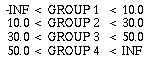
When the dialog Calculate button is pressed the volume of grid cells in each data range will be calculated and displayed in the log/status window.
When a bench cut is desired, the depth of the cut must be specified in all the planes that the Active-Cut toggle is set to true. The cut-depth specifies for the given plane the maximum numbers of block levels that can be removed.
If instead of making a bench cut, it is more appropriate to remove an entire layer or group of layers (rows, or columns) (Figure 13.9), there are two methods. The first is to maximize the cut-depth for the two planes not of concern; then by setting the cut- depth on the desired plane to the desired depth. The alternative method is to set the Active-Cut toggles for the two planes not of concern to false, and then setting the cut- depth on the desired plane to the desired depth. Either method will accomplish the same task.
A final option on the Bench:Modify dialog is Automatic Replot. This option automatically redraws the block model whenever a bench cut depth is modified using a slider-bar. This allows the user, on small data sets, to peal away layers, columns, or rows in real time. On large data sets, do not use this option; the refresh rate for the map is to slow.
There are three methods to load a file in block. The first is to execute block from the UNIX prompt and open the file from the menu, the second is to pass the file as a command line argument, and the third is to define the file name in the program preference file. To open a file from the main menu, execute block from the UNIX prompt:
Once in the application, select the File:Open menu option. The pop-up dialog shown in Figure 5.2 will appear. Select the desired file. Once a file has been selected the graph of the data will be drawn. To open a file from the command line, enter at the UNIX prompt:
For example:
will open the graph file shown in Figure 13.16. Note, in this figure, other variables then those passed on the command line could have been defined. These variables could have been set using the menus, or using a preference file (Appendix C). A preference file is used to define user preferred variable default values. Every time block runs, it searches the current working directory for the file block.prf. If it exists, block reads the file and sets the variables as specified. This is the third way to open a file, because one of the arguments in the preference file is the name of the block file.
Syntax:
Meaning of flag symbols:
NOTES:
Flag Definitions:
| -ar | = | automatic redraw when cut slider modified | default = 0 | ||
|
|||||
| -bf | = | fill interior of blanking lines | default = 1 | ||
|
|||||
| -blf | = | blanking file | default = " " | ||
| -bv | = | show blocks within view range limit | default = 1 | ||
|
|||||
| -colcut | = | cutoff colors outside palette range | default = 0 | ||
|
|||||
| -cplt | = | plot main contour line labels | default = 1 | ||
|
|||||
| -cmax | = | maximum color palette value | default = data set maximum | ||
| -cmin | = | minimum color palette value | default = data set minimum | ||
| -ewa | = | east-west cut active | default = 1 | ||
|
|||||
| -ewb | = | east-west bench cut depth | default = 0 | ||
| -ex | = | exaggeration | default = 1.0 | ||
| -fnt1 | = | main title font | default = Helvetica | ||
| -fnt2 | = | secondary title font | default = Helvetica | ||
| -fnt3 | = | axes label font | default = Helvetica | ||
| -fnts1 | = | main title font size | default = 24.0 | ||
| -fnts2 | = | secondary title font size | default = 15.0 | ||
| -fnts3 | = | axes label font size | default = 15.0 | ||
| -hb | = | hide borders | default = 1 | ||
|
|||||
| -help | = | give this help menu | |||
| -hz | = | viewing angle above horizon | default = 25.0 | ||
| -lcc | = | point posting color ID data column | default = 1 | ||
| -lgf | = | log file name | default = "log.dat" | ||
| -lic | = | point posting line ID data column | default = 1 | ||
| -lpbm | = | page bottom margin | default = 1.5 | ||
| -lpc | = | number of copies to print | default = 1 | ||
| -lpd | = | print destination | default = 0 | ||
|
|||||
| -lpf | = | print filename | default = "junk.ps" | ||
| -lph | = | print header page | default = 0 | ||
|
|||||
| -lplm | = | page left margin | default = 1.5 | ||
| -lpo | = | print orientation | default = 0 | ||
|
|||||
| -lppsext | = | search extention for postscript files | default = "*.ps" | ||
| -lpq | = | print queue | default = "ps" | ||
| -lpr | = | print file at specified orientations | |||
| -lprm | = | page right margin | default = 1.0 | ||
| -lps | = | print output | default = 0 | ||
|
|||||
| -lptm | = | page top margin | default = 1.5 | ||
| -lsc | = | point posting symbol ID data column | default = 1 | ||
| -nsa | = | north-south cut active | default = 1 | ||
|
|||||
| -nsb | = | north-south bench cut depth | default = 0 | ||
| -pal | = | user specified color palette file | default = " " | ||
| -pc | = | post points with colors | default = 0 | ||
|
|||||
| -phc | = | post points with cross | default = 1 | ||
|
|||||
| -phl | = | post points maximum histogram length | default = 30.0 | ||
| -php | = | post points with magnitude scale centered on 0.0 | default = 1 | ||
|
|||||
| -pl | = | color palette | default = 3 | ||
|
|||||
| -pll | = | post points with lines | default = 0 | ||
|
|||||
| -ppp | = | post points with cross | default = 1 | ||
|
|||||
| -prf | = | preference file name | defalut = "block.prf" | ||
| -ps | = | post points with symbols | default = 0 | ||
|
|||||
| -qr | = | quick rotate | default = 0 | ||
|
|||||
| -rfh | = | screen refresh | default = 0 | ||
|
|||||
| -rt | = | viewing direction | default = 45.0 | ||
| -ss | = | post points symbol size | default = 5.0 | ||
| -suf | = | read Seismic Unix file | default = 0 | ||
|
|||||
| -sul | = | Seisic Unix file receiver lines | default = 0 | ||
| -sur | = | Seisic Unix file receiver per lines | default = 0 | ||
| -va | = | vertical cut active | default = 1 | ||
|
|||||
| -vb | = | vertical bench cut depth | default = 0 | ||
| -vc | = | point posting value data column | default = 4 | ||
| -vmax | = | maximum display value | default = data maximum | ||
| -vmin | = | minimum display value | default = data minimum | ||
| -vsi | = | volume step interval | default = maximum - minimum | ||
| -xc | = | point posting X data column | default = 1 | ||
| -xmax | = | point posting X display maximum | default = data X maximum | ||
| -xmin | = | point posting X display minimum | default = data X minimum | ||
| -yc | = | point posting Y data column | default = 2 | ||
| -ymax | = | point posting Y display maximum | default = data Y maximum | ||
| -ymin | = | point posting Y display minimum | default = data Y minimum | ||
| -zc | = | point posting Z data column | default = 3 | ||
| -zm | = | zoom | default = 1.0 | ||
| -zmax | = | point posting Z display maximum | default = data Z maximum | ||
| -zmin | = | point posting Z display minimum | default = data Z minimum |
Equal Dimensions:
Three are three file formats that assume equal grid block dimensions. These are
GRID CENTERED GRID, NODE CENTERED GRID, and EQUALLY_SPACED. The first
two formats are discussed in Chapter 11 (contour), the last is discussed below.
Equally Spaced:
If  x = constant, y = constant, and z = constant, follow these instructions. The
UNCERT equal dimensioned block grid file format specifies the number of rows (n),
columns (m), and layers (o) in the grid, that the file is EQUALLY_SPACED (spelled
exactly as shown in upper case), and the width of the map in the X, Y, and Z directions.
When specifying the grid, the bottom layer is specified first, upward to the top layer last.
The row and column values are defined west to east on a single line, then north to
south on successive lines. The format is as follows:
x = constant, y = constant, and z = constant, follow these instructions. The
UNCERT equal dimensioned block grid file format specifies the number of rows (n),
columns (m), and layers (o) in the grid, that the file is EQUALLY_SPACED (spelled
exactly as shown in upper case), and the width of the map in the X, Y, and Z directions.
When specifying the grid, the bottom layer is specified first, upward to the top layer last.
The row and column values are defined west to east on a single line, then north to
south on successive lines. The format is as follows:
	# columns	# rows	#layers
	[integer]	[integer]	[integer]
	EQUALLY_SPACED
	map width (X)	map width (Y)	map height (Z)
	[real]		[real]	[real]
	row-1:col-1:lay-1	row-1:col-2:lay-1	...... 	row-1:col-n:lay-1
	[real]
	row-2:col-1:lay-1	row-2:col-2:lay-1	...... 	row-2:col-n:lay-1
	[real]
 	  :
 	  :
	row-m:col-1:lay-o	rowm:col-2:lay-o	...... 	row-m:col-n:lay-o
	[real]
The example data file, map.bck (Figure 13.16) is shown below:
	10 10 2
	EQUALLY_SPACED
	100.0 100.0 20.0
	18 13  6  4 15 17 14 11 29 34	: Start of bottom layer
	13  9  4 12 16  8  9 15 31 36
	 6  4  5  6  6  7  8  7 18 29
	 4  5  6  7  7  7  8  9 10 17
	 4  4  6  8 10 11  7  8  9 12
	 4  4  4  6  8 10  6  6  7  8
	 3  3  3  2  4  7  5  5  6  7
	 6  6  7  8 13 24 13  4  6  7
	 7  7  8  9 12 19 10  5  7  8
	 6  6  7  8 11 13  9  6  7  9
	 6  6  7  8 11 13  9  6  7  9	: Start of top layer
	 7  7  8  9 12 19 10  5  7  8
	 6  6  7  8 13 24 13  4  6  7
	 3  3  3  2  4  7  5  5  6  7
	 4  4  4  6  8 10  6  6  7  8
	 4  4  6  8 10 11  7  8  9 12
	 4  5  6  7  7  7  8  9 10 17
	 6  4  5  6  6  7  8  7 18 29
	13  9  4 12 16  8  9 15 31 36
	18 13  6  4 15 17 14 11 29 34
Non-Equal Dimensions:
If x does not equal a constant, y does not equal a constant, or z does not equal a constant, follow these instructions. The
UNCERT equal dimensioned block grid file format specifies the number of rows (n),
columns (m), and layers (o) in the grid, that the file has IRREGULAR_GRID_SPACING
(spelled exactly as shown in upper case), and the cell dimensions in the X, Y, and Z
directions. When specifying the grid, the bottom layer is specified first, upward to the
top layer last. The row and column values are defined west to east on a single line,
then north to south on successive lines. The format is as follows:
	# columns	# rows	#layers
	[integer]	[integer]	[integer]
	IRREGULAR_GRID_SPACING
	col-1-width	col-2-width   ... ...	col-n-width
	[real]	[real]		[real]
	row-1-width	row-2-width   ... ...	row-m-width
	[real]	[real]		[real]
	lay-1-height	lay-2-height   ... ...	lay-o-height
	[real]	[real]		[real]
	row-1:col-1:lay-1	row-1:col-2:lay-1	...... 	row-1:col-n:lay-1
	[real]
	row-2:col-1:lay-1	row-2:col-2:lay-1	...... 	row-2:col-n:lay-1
	[real]
 	  :
 	  :
	row-m:col-1:lay-o	rowm:col-2:lay-o	...... 	row-m:col-n:lay-o
	[real]
The example data file, well.bck (Figure 13.5) is shown below:
	10 10 2
	IRREGULAR_GRID_SPACING
	20 10 5 2.5 1.25 0.625 0.625 1.25 2.5 5  	: column spacing
	20 10 5 2.5 1.25 0.625 0.625 1.25 2.5 5  	: row spacing
	2.5 7.5 				    		: layer spacing
 	1  3  8 11 14 23 28 31 22  8
 	2  5  7 12 16 20 34 40 31 15
 	4  8 10 15 26 31 32 34 21 10
 	7 10 16 22 34 45 36 29 13  5
 	9 14 21 30 55 63 70 55 26  7
 	6 11 18 25 51 96 98 82 38  9
 	5 10 15 20 40 90 99 79 21  0
 	4  9 13 18 38 91 97 67 17  0
 	3  7 10 15 22 86 87 23  7  0
 	1  3  6  8 15 43 53 13  4  0
 	1  3  8 11 17 35 40 45 29  8
 	2  5  7 18 22 45 55 59 31 15
 	4  8 10 15 26 31 32 34 21 10
 	7 10 16 22 34 45 36 29 13  5
 	9 14 21 30 55 63 70 55 26  7
 	6 11 18 25 51 96 98 82 38  9
 	5 10 15 20 40 90 99 79 21  0
 	4  9 13 18 38 91 97 67 17  0
 	3  7 10 15 22 86 87 23  7  0
 	1  3  6  8 15 43 53 13  4  0
Non-Gridded Files:
Sometimes it is important to display raw field data in three dimensions. The file
format for this data is the same as described in Chapter 5 (plotgraph) for the basic and
the GEO-EAS formats. There are several requirements for this file though. There must
be at least one column for the X, Y, and Z coordinate for each point. On a practical
basis there also needs to be a point value column. Four columns are sufficient if only
points are to be drawn or all points are in a single line. If the points are to be
connected by different lines, there needs to be a column identifying the line the point
belongs to. Note, points in a single line must be consecutive. Points with the same line
ID, separated by another line, are drawn as separate lines! If point symbols are to be
used, another column is required. The same is true, if points or line segments are to be
colored. The symbol code is:
The color code is:
Blanking Files:
Blanking files can be in any three-dimensional block format, but they must
match the grid dimensions of the grid file already open. The only difference between a
blanking file and the other formats is that the grid values are either 1's or 0's. If the
value is 1, the grid cell will be plotted. If the value is 0, the grid cell will not be plotted.
Gómez-Hernández, J.J. and R.M. Srivastava, 1990, ISIM3D: An ANSI-C Three Dimensional Multiple Indicator Conditional Simulation Program, Computers in Geoscience, Vol. 16, No. 4, pp. 395-440.
McDonald, M.G., and A.W. Harbaugh, 1984, A Modular Three-Dimensional Finite- Element Flow Model, U.S. Geological Survey OFR 83-875.