CHAPTER 5: Plotgraph





The plotgraph application is used for plotting two-dimensional X-Y graphs. The
application allows the user to plot lines, points with various symbols, and calculate
regression lines. The data can be plotted using normal, semi-log, and log-log axes.
The plotgraph application is composed of three sections (Figure 5.1); the main
menu-bar, the status and log text area, and the drawing or graph area. The menu-bar
is used to select all plotgraph commands, the log/status area is used by the program to
report important messages or results, and the drawing area is the display area for the
graphs.
 Figure 5.1
Menu Items
Examples
Command Line Arguments
File Formats
Mathematics
Bibliography
The main menu controls nearly all the program operations; files can be opened
and saved, graphics can be plotted, the appearance of the graphic can be modified, help
can be requested, and the results can be sent to the printer. For plotgraph there are
seven items on the main menu:
File,
Data,
Curve Fitting,
Graph,
Log,
Plot, and
Help
(Figure 5.1). File controls file handling (opening, saving, naming files), directs printing,
and allows the user to quit the application. Data defines which columns (when
appropriate) the X and Y data will be read from. Curve Fitting is used to fit either cubic
spline's to the points in a line or perform a least-squares regression. Graph is used to
define details about the graph border, fonts, label, mesh, and line styles. Log allows the
user to save the text messages and results printed to the log/status window. Plot plots
the graph. Help gives the user a selection of pop-up help topics. Each menu item is
fully described below with all the available options.
[TOP]
The File sub-menu options control file and print handling, and exiting the
program. The options include Open, Add, View, Save, Save as,
Save Preferences, Print Setup, Print, Quit, and Quit Without Saving.
Selecting File:Open generates a pop-up dialog ( Figure 5.2) which allows the user
to select an existing data file. The dialog is composed of five parts; the filter, directory
list, file list, selection, and button command row.
 Figure 5.2
The Filter is used to define which files are displayed. Generally in a directory
there are many files, but only a small subset of them are usable by the application. If
standard file conventions are used, plotgraph expects files with a "*.dat" form (the "" is a wild card -
this format identifies all files ending with a "dat" extension). The default
directory is current directory path/*.dat. Often the user uses a different file extension,
or the desired file is in a different directory; by modifying the filter appropriately and
hitting <RETURN> or pressing the Filter button at the bottom of the dailog, the files meeting the filter
specifications will be shown.
The Directories area shows the directories immediately adjacent to the selected
directory. The first two directories in the list are special:
- /*/. indicates the current directory.
- /*/.. indicates the parent directory.
The remaining directories in the list are sub-directories of the current directory. By
double-clicking on a directory with the left mouse button, or marking the directory and
hitting the <RETURN> key, the program will search the indicated directory using the
filter.
The Files area shows the list of files that pass the specifications of the Filter.
Note that only the filename is shown, but by moving the horizontal scroll-bar, the full
directory path can be viewed. To select a file, mark it with the mouse; double-clicking
on the selection, hitting <RETURN> after making the selection, or pressing the Open
button completes the selection process.
If the desired file is not shown, the user can type in the file name in the Selection
text field. If the file is in the current directory the path need not be given, otherwise the
full path is required. Hitting the <RETURN> key or the Open button completes the file
selection process.
If the user decides not to open a new file, the Cancel button will destroy the pop-
up dialog. In this program the Help button is inactive, i.e. no help is available directly
from this dialog.
In many cases, it is useful to plot more then one line on a graph, or lines from
several different data files on one graph. File:Add serve this function. Before File:Add
can be used however, one file must already have been opened (with the File:Open
command, passed on the command line, or defined in the preference file (Appendix C).
Once a graph has been created additional lines may be added. To do this select the
Add option. A pop-up dialog (similar to Figure 5.2) will appear requesting the desired
data file (any legitimate plotgraph file format is acceptable). When the data file is
selected the line(s) will be superimposed over the preexisting graph.
In adding two or more lines to one graph, plotgraph assumes that a new file
should be created before the program is terminated. The graph may be saved by using
the Save or the Save as menu options. If the program is terminated before the graph is
saved with the Quit menu option, the user will be queried for a file name. To avoid
saving the graph, select Quit Without Saving. To clear a graph that has been "added"
together, Open a new file. Note: once new lines have been added to a graph, they
cannot be deleted (it is possible to hide them however, and they can be edited out of the
newly created data file. See the main menu option Graph:Style, or the "Setting up the
Input File" section).
File:View pops up a simple screen editor with the last saved/opened version of
the file being graphed.
File:Save saves the lines in the current graph to a file. If a save file has already
been opened, the data are simply saved. If a save file has not been selected yet, a pop-
up dialog similar to that used in File:Open ( Figure 5.2) is created. The main difference
between the Open and the Save dialog is that to save a file, the file does not have to pre-
exist. For a description of how the dialog works, see the Open section above and
substitute the Save for Open wherever appropriate.
The graph lines will be saved using the MANY LINE format described in "Setting
up the Input File" section.
File:Save as is used to save the graph lines to a user specified file. A pop-up
dialog similar to that used in File:Open ( Figure 5.2) is created. The main difference
between the Open and the Save as dialog is that to save a file, it does not have to pre-
exist. For a description of how the dialog works, see the Open section above and
substitute the Save for Open wherever appropriate.
The graph lines will be saved using the MANY LINE format described in "Setting
up the Input File."
When using programs with many user options, it is not possible for the program
to always pick acceptable default values for each parameter or input variable. For this
reason, preference files were created (See Appendix C). These allow the user to define a
unique set of "defaults" applicable to the particular project. When File:Save Preferences
is selected, plotgraph determines how all the input variables are currently defined and
writes them to the file "plotgraph.prf."
- WARNING: if "plotgraph.prf" already exists, you will be warned that it is about to be
over-written. If you do not want the old version destroyed you must move it to a
new file (e.g. the UNIX command mv plotgraph.prf plotgraph.old.prf would be
sufficient). When you press OK, the old version will be over-written! This
cannot be done from within the application. To rename the file, you have to
execute the UNIX mv command from a UNIX prompt in another window.
If "plotgraph.prf" does not exist in the current directory, it is created. This is an ASCII
file and can be edited by the user. See Appendix C for details.
File:Print Setup allows the user to define the print destination, the number of
copies that will be made, the page orientation, the print margins, and whether the
Postscript output will be in black and white or color ( Figure 5.3). The print destination
can be a printer or a file. If the destination is a printer, the Postscript print queue must
be defined.
 Figure 5.3
- NOTE: The default print queue name is "ps." Depending on your network
configuration, your Postscript print queue may be named something else.
If the destination is a file, the file name must be defined. To select an output file, enter
the name in the text field or press the Select button. A pop-up dialog similar to Figure
5.2 will prompt the user for a Postscript file name. If multiple copies are desired, enter
the desired number in the Number of Copies text field. If a header page is desired, flip
the Print Header Page toggle to TRUE. The page margins can be set by pressing the Set Margins button.
The margins are set using the dialog shown in Figure 5.4.
 Figure 5.4
- NOTE: The margins specify the distance to the edge of the graph, not to the extents
of the text.
The graph can also be printed in either a portrait ( Figure 5.5) or a landscape orientation
( Figure 5.6). The output can be set to either Black & White or Color. Note, color output
can be printed on a gray scale printer; the printer will dither the color to a gray scale.
 Figure 5.5
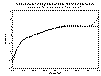 Figure 5.6
File:Print generates a Postscript file of the graph, and depending on how the
print options are define in Print Setup, directs this file to the specified print queue, or to
the specified file.
File:Quit terminates the program, but if additions have been made to the graph,
the user will first be queried to supply a file to save the changes in.
File:Quit Without Saving terminates the program regardless of any additions to
the graph. Once pressed there is no option to change your mind.
[TOP] [SYNTAX]
When the appropriate file type is being read (multiple column data), selecting the
Data:Modify menu option allows the user to specify which columns will define the X and
Y data ( Figure 5.7). Note that after these columns are defined the desired file must be
loaded (or reloaded). These options will not effect the current graph. Only the two
active data columns are stored in memory by the program, so if data columns are
changed, the program must reread the data file.
 Figure 5.7
[TOP] [SYNTAX]
After a data file is loaded, a least-squares regression can be calculated for any
line by selecting the Curve Fitting:Regression menu option. The options available are
shown in Figure 5.8. Equations of order 1 to 10 are valid. The Line Number that the
regression line will be calculated for can be specified for any valid line. Once the
regression order and data line are specified, pressing the Calculate button calculates and plots the regression line.
The regression line is plotted on the graph and the regression formula is printed in the text log window.
 Figure 5.8
The regression line is only a temporary feature of the graph and will be removed
when the dialog box is destroyed (by pressing the Done button). To make the line
permanent, press the Add as Permanent Line button.
[TOP] [SYNTAX]
Graph allows the user to specify various attributes about the apperance of the
graph. Attributes about the graph Axes types, Border, Fonts, Labels, Mesh, and line
Style.
Graph:Axes allows the user to specify the axes types for the x-axis and y-axis.
The active axes type is highlighted in red. The options are Normal, Log-X, Log-Y, and
Log-Log. The Log-X and Log-Y options are both semi-log graphs, but specify the
transformed axis.
Graph:Border ( Figure 5.9) allows the user to specify attributes about axes
dimensions and labeling. Plotgraph will automatically scale the graph to the application
window, and space minor and major tic marks. These are often not exactly what the
user wants. These, however are completely user specifyable. In the Border pop-up
dialog, the axes dimensions, tic spacing, and tic label format are defined. The limits of
the raw data are displayed for the user's reference ( Figure 5.9). The limits of the data
are the default limits of the graph. To modify the extents of the graph the X and Y
maximum and minimum values can be changed in the Graph Limits section of the
dialog. The major tic frequency, by default, is defined so that there will be eleven labels
on each axis; these will be divided into five minor tic ranges (four tics). These
parameters can be modified in the Border Tic Spacing area.
 Figure 5.9
- NOTE: The Graph Limits and the Border Tic Spacing specifications are largely
ignored for a log axis. The axis will start at the first power of ten below the X or
Y Minimum value (e.g. if Y Minimum = 0.3, the minimum graph limit would be
0.1). The axis will also end at a power of ten just larger then the X or Y
Maximum value (e.g. if Y Maximum = 32.1, the maximum graph limit would be
100.0). The major tic marks will also fall on each power of ten, and there are ten
log scaled sub-tic marks.
When a new graph is loaded, or when the axis type is changed (normal vs. log),
often the predefined graph limits or tic spacing is inappropriate. Two options are
available to remedy this situation. By pressing the Auto-Scale Axes Limits button new X
and Y, minimum and maximum limits are selected; these will match the extents of the
Data Set Limits. The major tic frequency can also be automatically selected by pressing
the Auto-Scale Tics Frequency button.
Major tic mark labels appear with each major tic mark, and the format is
specified in the Labels section. The formats are C language formats for floating point
numbers. The specifics are defined in Appendix A, but are briefly described as:
- Syntax: [width of field].[# of decimal places][e f g]
- where:
- e = exponential
- f = fixed
- g = general
The dimensions of the graph are controlled by the Axes Specifications; Y
Exaggeration Scale and X/Y Ratio. Both of these numbers control the same process,
but describe it in a different manner. Note that when one number is changed, the
alternate number is also changed. In many cases it is important that the X-scale and
the Y-scale are the same (i.e. there is no directional distortion, or differential scaling)
where the Y Exaggeration Scale = 1.0. Sometimes it is convenient for the Y-scale to be
some user specified factor larger or smaller then the X-scale. In other cases, it may be
more important for the appearance of the graph is consistant (e.g. square, where the X-
axis is the same length as the Y-axis. Here the X/Y Ratio would equal 1.0). As shown
in Figure 5.3, the X-axis will be 1.5 times the length Y-axis, or the Y-scale is
exaggerated 19.373931 times.
- WARNING: Because the X/Y Ratio and the Y Exaggeration Scale describe the same
property; when one number is ch other number is also changed. If
you wish to specify a value for one parameter, you must hit <RETURN> after the
entry. This is because, when you hit the Done or Apply button at the bottom of
the dialog, each variable in the dialog is queried for its value and entered. This
process is done one variable at a time. If you do not hit <RETURN> after making
an entry, the query process may change the alternate parameter first; when this
happens the unentered entry is replaced and forgotten.
Graph:Fonts is used to select the screen and Postscript text fonts used by the
graph. Different fonts may be specified for the Main Title, the Secondary Title, the Axes Labels,
the axes Division Labels, Annotations, and the screen mouse Position ( Figure
5.10). The font name for each may be entered in the text field or by pressing the Select
button. The font Size can also be modified.
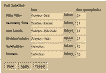 Figure 5.10
- NOTE: The font size is in pixels for the X-windows screen display and in 1/72"
points for Postscript output. Note, that this also means that the screen graph
and the Postscript output graph will generally have the fonts scaled differently
relative to the graph (What you see is not necessairly what you get).
When the Select button is pressed, the dialog shown in Figure 5.11 will be generated.
From this dialog, the user can select the desired font.
 Figure 5.11
- NOTE and WARNING: Some font names that may be entered may not be supported
by your X-station or by your Postscript printer. If an invalid X font is selected,
the X display will select a default font. The program, however, cannot determine
which fonts are support by the attached printer. As a result a printing error will occur. Either the text will not be printed, the
text will be printed with a default font, or the printer will abort the print job.
The available fonts are (specified in fonts.h):
- Avant Garde-Book -Book Oblique -Demi -Demi Oblique
- Bookman-Demi -Demi Italic -Light -Light Italic
- Courier -Bold -Bold Oblique -Oblique
- Helvetica -Bold -Bold Oblique -Oblique
- Helvetica-Narrow -Narrow-Bold -Narrow-Bold Oblique -Narrow Oblique
- New Century School Book-Bold -Bold Italic -Italic -Roman
- Palatino-Bold -Bold Italic -Italic -Roman
- Symbol (Symbol)
- Times-Bold -Bold Italic -Italic -Roman
- Zapf Chancery-Medium Italic
- Zapf Dingbats (Zapf Dingbats)
- NOTE: All these fonts in all sizes may not be available on all systems. Also,
whether or not X-windows supports the font, suggests nothing about the
Postscript printer support. Generally, a Postscript printer will support the listed
fonts in any size. X-windows will likely not support all these fonts, and sizes are
limited.
Graph:Labels is used to annotate the graph title and each axis. An example
dialog is shown in Figure 5.12. The Main Title is centered over the graph and written in
a larger font then the rest of the text on the graph. The Secondary Title, if used, is
centered over the graph, under the Main Title with a smaller font. If the Secondary Title
is used the Main Title is raised slightly. The X-Axis Label and Y-Axis Label define the
label for the respective axis.
 Figure 5.12
Graph:Mesh is used to overlay a grid over the graph ( Figure 5.13). The line type,
mesh origin, and the spacing of the grid lines for the graph can be specified with this
dialog. The default is no grid, a (0.0, 0.0) origin, and the calculated mesh frequency is
the same as the calculated main tic frequency defined in Border:Grid Parameters. The X
or Y Mesh Frequency can be specified as desired.
 Figure 5.13
- NOTE: When Use Mesh is selected both X and Y grid lines are generated; to hide
one set of grid lines (only mesh lines on one axis are desired), set the axis
interval to something larger than the width (or height) of the graph. If the graph
has a log axis and the grids are plotted, it is not possible to "hide" the grid lines
for the log axis.
To reduce the "clutter" in the graph, selecting Dash Mesh is sometimes useful.
Graph:Style is used to control the appearance of individual lines on the graph.
When first selected, the parameters for line #1 are displayed. If a different line is
desired, the line ID can be specifically selected in the Define Line No. entry field, or the
lines can be step through using the Previous and Next buttons (The numbering of lines
is described in "Setting up the Input File"). When the desired line is selected, the pop-
up dialog shown in Figure 5.14 is generated. This dialog allows the user to specify the
Line Color, Line Type, Symbol Type, Symbol Fill, Line Thickness, and Symbol Size. The
Line Thickness and Symbol Size define the height in "pixels" on the screen and the
height in 1/72 inches for Postscript printing. The thickness or size for "pixels" must be
greater than or equal to one; for Postscript, values must be greater than 0.0.
 Figure 5.14
[TOP] [SYNTAX]
The Log menu option is supplied to allow the user to save, view, or print all text
which has been written to the log/status window by the program or added by the user
(The log window is also a simple text editor). The options include View Log, Save, Save
as, Clear, and Print. View Log, Save, and Save as are similar in operation to the menu
options under File described above.
[TOP] [SYNTAX]
Plot controls when the graph is plotted and under what circumstances it is
refreshed.
Plot:Now means redraw the graph now!
Under Plot:Refresh there are two options: on Exposure or on Update. Because of
the multitasking environment in X-windows, the user commonly has many windows
open. When a portion of the plotgraph application becomes covered, and then
uncovered at least one exposure event is sent. On complicated graphs it can become
frustrating to wait for the graph to redraw (sometime several times) when nothing has
been changed. This is what occurs under the on Exposure state. If the graph is only
redrawn on Update the graph is only drawn when the graph is initially loaded, when
some parameter is changed, or when Plot:Now is selected from the menu.
Unfortunately, when sections of the graph are covered, then uncovered, they are not
necessarily redrawn, and there are odd blanked areas. This looks odd, but replotting
the graph will correct the problem. Which state the user uses is a matter of personal
preference.
[TOP] [SYNTAX]
Help lists topics about the program for which there is help. When a item is
selected a pop-up dialog with a scrolled text area is generated which is similar to
Figure 5.15 with the desired information.
 Figure 5.15
- NOTE: Only one help window may be open at a time.
Help files are editable ASCII data files; for further information see Appendix D.
[TOP] [SYNTAX]
In plotgraph there are several uses for the mouse. When in the active graph
region, the pointer will cause the graph coordinate to be display in the upper-left of the
graphics window. Pressing the mouse buttons may also be used to refresh the display
or zoom into a particular portion of the graph.
When the mouse pointer is in the active graph region (within the graph axes),
the X and Y graph position coordinates will be displayed in the upper-left of the
graphics or drawing area. These coordinate will be updated automatically as the mouse
is moved. The coordinates are displayed using the Position font described previously in
the Font section ( Figure 5.10).
If you need to take a photograph of the screen, or for some other reason don't
want the graph coordinates displayed, simply move the mouse pointer out of the graph.
The coordinates will disappear.
Sometimes the graphics display is not updated after a pop-up dialog or another
window is removed, or uncovers the display area. The graph can be redrawn using the
Plot:Now menu option, or by moving the pointer into the drawing area and clicking with
any mouse button (Using the right mouse button may produce undesirable results; see
Zoom section below).
Often it's important to examine a particular portion of the graph more closely.
New graph extents can be specified using the Graph:Border menu option, but this can
be slow and inaccurate. A fast way to zoom into a location is to use the right mouse
button. To zoom, follow these steps:
- Visually pick out the rectangular region you want to zoom into. Move the mouse
pointer to one corner, and press and hold the right mouse button.
- Move the mouse pointer, still holding the right button down, to the opposite
visual corner. As you move the mouse, a rectangle will be drawn showing the
area that will be zoomed into.
- When the desired area has been selected, release the right mouse button. The
graph will be redrawn showing the desired region.
The zoom can be repeated again in the zoomed region until the desired detail is
acquired ( Figure 5.16). To unzoom, you point the mouse anywhere in the drawing area
and press and release the mouse button without moving the mouse. This will redraw
the graph to the maximum data extents of the graph.
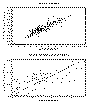 Figure 5.16
- NOTE: If the graph does not immediately redraw after you release the mouse
button, move the mouse slightly. This will cause the graph to redraw.
- WARNING: When you zoom back out to the full extents of the graph, preselected graph dimensions
set in the Graph:Border menu option, passed on the
command line, or defined in the preference file are ignored. It is therefore
important not to use the right mouse button to refresh the graph if you are
trying to specify grid parameters to improve the appearance of the graph.
[TOP] [SYNTAX]
Using plotgraph is quite straight forward. Once a file has been loaded a graph is
generated; most of the program options control only the appearance of the graph.
There are three methods to load a file in plotgraph. The first is to execute
plotgraph from the UNIX prompt and open the file from the menu, the second is to pass
the file as a command line argument, and the third is to define the file name in the
program preference file. To open a file from the main menu, execute plotgraph from the
UNIX prompt:
- > plotgraph
Once in the application, select the File:Open menu option. The pop-up dialog shown in
Figure 5.2 will appear. Select the desired file. Once a file has been selected the graph
of the data will be drawn. To open a file from the command line, enter at the UNIX
prompt:
- > plotgraph [optional arguments] filename
For example:
- > plotgraph log.out
will open the graph file shown in Figure 5.5, and
- > plotgraph -axes 1 log.out
will open the same data file, but it will specify the x-axis is a log axis. NOTE: in both
Figures 5.5 and 5.17, other variables then those passed on the command line
were defined. These variables could have been set using the menus, or a preference file
(Appendix C). Every time plotgraph runs, it searches the current working directory for
the file plotgraph.prf. If it exists, plotgraph reads the file and sets the variables as
specified. This is the third way to open a file, because one of the arguments in the
preference file is the name of the graph file.
 Figure 5.17
[TOP]
In many cases it is more convenient to run the application completely from the
command line, or at least pass some parameter values in from the command line. The
options listed below allow the user to accomplish almost anything that is possible from within the X-windows application from
the command line (adding lines from different files is not currently supported). This feature can be useful when the user does
not have a X-windows/Motif terminal available, or when many graphs need to be processed quickly, and the operation can be
completed in batch mode without user interaction.
Syntax:
- plotgraph
[-axes #]
[-esp #]
[-fnt1 " "]
[-fnt2 " "]
[-fnt3 " "]
[-fnt4 " "]
[-fnt6 " "]
[-fnts1 #.#]
[-fnts2 #.#]
[-fnts3 #.#]
[-fnts4 #.#]
[-fnts5 #.#]
[-fnts6 #.#]
[-help]
[-lc {#}]
[-lgf " "]
[-lpbm #.#]
[-lpc #]
[-lpd #]
[-lpf " "]
[-lph #]
[-lplm #.#]
[-lpo #]
[-lppext " "]
[-lpq " "]
[-lpr]
[-lprm #.#]
[-lps #]
[-lptm #.#]
[-lty {#}]
[-ltk {#.#}]
[-md #]
[-mox #.#]
[-moy #.#]
[-ms #]
[-mx #.#]
[-my #.#]
[-prf " "]
[-rfh #]
[-sfl {#}]
[-ssz {#.#}]
[-sttl " "]
[-sty {#}]
[-ttl " "]
[-xc #]
[-xfmt " "]
[-xlabel " "]
[-xmin #.#]
[-xMt #.#]
[-xmt #]
[-xto #.#]
[-xy #.#]
[-yc #]
[-yfmt " "]
[-ylabel " "]
[-ymax #.#]
[-ymin #.#]
[-yMt #.#]
[-ys #.#]
[-yto #.#]
[filename " "]
Meaning of flag symbols:
- # = integer
- #.# = float
- " " = character string.
- {} = variable is an array. Values must be seperated by a ',' and no spaces
are allowed. Do not use the "{ }" symbols on the command line.
NOTES:
All parameters in [] brackets are optional.
Quotes must be used around character strings.
Filename, if given, must be listed last.
If no default is given, the feature is not currently supported
on command line.
If no entry is required for flag, flag command executed.
Flag Definitions:
-
| -axes | = |
graph axes types | default = 0 |
| |
0
1
2
3 |
=
=
=
= |
normal
log-X
log-Y
log-log |
|
| -esp | = |
exageration scale priority | default = 0 |
| |
0
1 |
=
= |
favor y-exageration scale (-ys)
favor x/y ratio |
|
| -fnt1 | = |
main title font | default = Helvetica-Bold |
| -fnt2 | = |
secondary title font | default = Helvetica-Bold |
| -fnt3 | = |
axes label font | default = Helvetica |
| -fnt4 | = |
division font | default = Helvetica |
| -fnt5 | = |
annotation font | default = Helvetica |
| -fnt6 | = |
mouse position font | default = Helvetica |
| -fnts1 | = |
main title font size | default = 24.0 |
| -fnts2 | = |
main title font size | default = 15.0 |
| -fnts3 | = |
main title font size | default = 15.0 |
| -fnts4 | = |
main title font size | default = 12.0 |
| -fnts5 | = |
main title font size | default = 10.0 |
| -fnts6 | = |
main title font size | default = 12.0 |
| -help | = |
give this help menu | |
| -lc {} | = |
line color | default = variable |
| |
0
1
2
3
4
5
6
7 |
=
=
=
=
=
=
=
= |
Black
White
Red
Green
Blue
Magenta
Yellow
Cyan |
|
| -lglp | = |
line legend position | default = 1 |
| |
0
1
2
3 |
=
=
=
= |
Top left
Top right
Bottom left
Bottom right |
|
| -lgmw | = |
maximum line legend width | default = 200 |
| -lpbm | = |
page bottom margin | default = 1.5 |
| -lpc | = |
number of copies to print | default = 1 |
| -lpd | = |
print destination | default = 0 |
| |
|
| -lpf | = |
print filename | default = "junk.ps" |
| -lph | = |
print header page | default = 0 |
| |
|
| -lplm | = |
page left margin | default = 1.5 |
| -lpo | = |
print orientation | default = 0 |
| |
0
1 |
=
= |
Portrait
Landscape |
|
| -lppsext | = |
search extention for postscript files | default = "*.ps" |
| -lpq | = |
print queue | default = "ps" |
| -lpr | = |
print file at specified orientations | |
| -lprm | = |
page right margin | default = 1.0 |
| -lps | = |
print output | default = 0 |
| |
0
1 |
=
= |
Black & white
Color |
|
| -lptm | = |
page top margin | default = 1.5 |
| -lsfl {} | = |
fill line symbol | default = 0 |
| |
|
| -lsc {} | = |
line symbol color | default = variable |
| |
1
2
3
4
5
6
7 |
=
=
=
=
=
=
= |
Black
White
Red
Green
Blue
Magenta
Yellow
Cyan |
|
| -lssz {} | = |
line synbol size | default = 9.0 |
| -lsty {} | = |
line symbol type | default = 0 |
| |
-1
0
1
2
3
4 |
=
=
=
=
=
= |
No Symbol
Circle
Cross
Diamond
Square
X |
|
| -ltk {} | = |
line thickness | default = 1.0 |
| -lty {} | = |
line type | default = 0 |
| |
-1
0
1
2 |
=
=
=
= |
No Line
Solid
Dashed
Double Dashed |
|
| -md | = |
dash mesh | default = 0 |
| |
|
| -mox | = |
X mesh origin | default = 0.0 |
| -moy | = |
Y mesh origin | default = 0.0 |
| -ms | = |
use mesh | default = 0 |
| -mx | = |
X mesh frequency | default = 1/10 DX |
| -my | = |
Y mesh frequency | default = 1/10 DY |
| -prf | = |
preference file name | defalut = "plotgraph.prf" |
| -rgl | = |
regression line | default = 1 |
| -rgl | = |
regression line | default = 1 |
| |
|
| -rgl | = |
regression order | default = 1 |
| -rgt | = |
regression type | default = 1 |
| |
1
2
3 |
=
=
= |
Normal: phi = F(t) DGECO & DGESL
| Normal: phi = F(t) DQRDC & DQRSL
Legendre polynomial |
|
| -rfh | = |
screen refresh | default = 0 |
| |
0
1 |
=
= |
On exposure
On update |
|
| -sttl | = |
Secondary title | default = " " |
| -ttl | = |
Main title | default = Filename |
| -xc | = |
X data input column | default = 1 |
| -xfmt | = |
Number of decimal places for X-axis | default = ".2f" |
| -xlabel | = |
X-axis label | default = "X" |
| -xmax | = |
Graph X-maximum | default = Data Maximum |
| -xmin | = |
Graph X-minimum | default = Data Minimum |
| -xMt | = |
X main tic frequency | default = 1/10 DX |
| -xmt | = |
Number of minor X tics | default = 5 |
| -xto | = |
X axis label origin | default = 0.0 |
| -xy | = |
X-Y ratio | default = 1.5 |
| -yc | = |
Y data input column | default = 2 |
| -yfmt | = |
Number of decimal places for X-axis | default = ".2f" |
| -ylabel | = |
X-axis label | default = "Y" |
| -ymax | = |
Graph Y-maximum | default = Data Maximum |
| -ymin | = |
Graph Y-minimum | default = Data Minimum |
| -yMt | = |
X main tic frequency | default = 1/10 DY |
| -ymt | = |
Number of minor Y tics | default = 5 |
| -ys | = |
Y-axis exageration relative to X-axis | default = Calculated |
| -yto | = |
X axis label origin | default = 0.0 |
An example command might be (typed on one line):
- plotgraph -lpr -xmin 0.0 -ymin 0.0 -ymax 12.0 -md 1 -ms 1 -mx 1.0 -my 1.0 -xMt
1.0 -yMt 1.0 -ttl "Semivariogram of Elevation Data" -sttl "UNCERT plotgraph
module" -xlabel "distance (feet)" -ylabel "gamma h" -xfmt ".1f" -yfmt ".1f" -esp 1 -
xy 1.0 water.out
This command produces the graph shown on the cover of the manual.
[TOP]
There are four basic data file formats are readable by plotgraph. The user does
not have to explicitly tell the program what format the data file is; the program can
determine this based of the file format, or on header lines within the data file. The first
format, Basic, does not require any header information. The remaining three formats
do have required header formats that must be followed exactly.
The basic file is simply a series on X and Y pairs:
		1.0	23.23
		2.21	12.34
		3.31	12.98
		4.56	 8.21
		5.12	10.92
		 .	  .
		 .	  .
		 .	  .
This data set would create one line. For this data format, no header information is
required. A similar file format that also needs no header information has multiple
columns of data:
		1.0	23.23	0.123	1.45
		2.21	12.34	0.00123	1.56
		3.31	12.98	0.231	2.34
		4.56	 8.21	0.345	1.76
		5.12	10.92	0.456	1.43
		 .	  .	 .	 .
		 .	  .	 .	 .
		 .	  .	 .	 .
For this style of data file plotgraph will assume column 1 defines the X values and
column 2 specifies the Y values, unless otherwise directed by the Data:Modify menu
option (NOTE: This format allows a maximum of 10 columns. The X and Y data
columns must also be defined before the file is loaded; if they are defined afterwards the
file must be reloaded).
The X AND MANY Y format the first column contains the X values, and the
remaining columns represent Y values for each appropriate X value; note, each Y
column represents one line. The file format is:
			X AND MANY Y
		3  5
		1.0	23.23	0.123	1.45
		2.21	12.34	0.00123	1.56
		3.31	12.98	0.231	2.34
		4.56	8.21	0.345	1.76
		5.12	10.92	0.456	1.43
X AND MANY Y must be on the first non-commented line and be in all capital letters.
On the second line there are two integer values; the first is the number of lines (the number of Y columns, i.e. the total number of
columns - 1), and the second defines how many X sample values were taken (NOTE, there must be one Y sample in each line for
every X coordinate. There is no option for NULL entries).
The MULTIPLE LINES format allows a file to describe several lines at once that
do not have a common X value. It also allows the file to specify line color, symbol type,
and line widths (NOTE: when a graph is saved using the File:Save as option, this is the
format it is saved with). An example file might look like:
		        MULTIPLE LINES
		2
		2 1 4 2.0 4 4 10.0 0 Lead (Pb)
		0.0	80.0
		100.0	80.0
		5 0 5 1.0 3 5 8.0 0 Silver (Ag)
		0.0	10.0
		20.0	35.0
		60.0	68.0
		80.0	75.0
		100.0	80.0
The format is: MULTIPLE LINES must be on the first non-commented line and be in all
capital letters. The second line specifies how many lines are in the data file. After this
line is a series of line data structures; each structure describes one line. The first line
of each series describes the 1) number of points in the line, 2) line type, 3) line color, 4)
line thickness, 5) symbol type, 6) symbol color (set to line color currently), 7) symbol
size, 8) symbol fill (not installed), and 9) line label (not installed). See the section on
Command Line Options for numerical values of line type, line and symbol color, and
symbol type. The following specified number of lines define the X, Y coordinate data
(One X, Y pair is on each line). If more lines are to be read, the above series description
is repeated.
GEO-EAS (Englund, 1988) has become a popular 2D geostatistical software
package over the last several years, and the its file format is commonly used. To avoid
making users modify their files, UNCERT accepts GEO-EAS files with one minor
exception noted below. An example GEO-EAS file might look like:
	Well #23-12383
	5
	X-location
	Y-location
	Z-location
	Hydraulic Conductivity (cm/s)
	Effective Porosity
	100.0	212.0	3454.2	10.23	0.23
	100.0	212.0	3454.2	 8.71	0.21
	100.0	212.0	3454.2	 1.12	0.15
The GEO-EAS file format is as follows:
	LINE 1		  :  Data file title.  In UNCERT the
			     first character CANNOT be a number.
	LINE 2		  :  The number of data columns (VAR)
	LINE 3 to 3 + VAR :  Label identifying each column
	LINES 4 + VAR ... :  One data entry for each column
[TOP]
Least-squares regression is a technique to fit a function to a given set of data.
The data are not exact (have some associated error) and the purpose of fitting a
regression line is to define the nature of the data with a function, rather than fit a
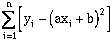
function which exactly honors all the data. This is done by fitting a function to the data
which minimizes the squared estimation error:
 (5-1)
(5-1)
where n = number of data points, xi is the ith sample position, yi is the ith
sample value, and a and b are constants to be found which minimize the least-squared error (Burden
and Faires, 1985).
In the general case where the data is approximated using a polynomial (P) of
order M:
 (5-2)
(5-2)
the object is to minimize the least-squares error (E):
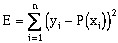 (5-3)
(5-3)
For a second order polynomial, the normal equations can be written in matrix form as
follows:
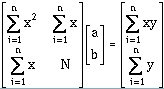 (5-4)
(5-4)
For a Mth degree polynomial they are written:
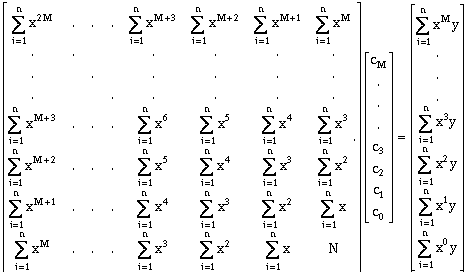 (5-5)
(5-5)
Using linear algebra this equation, simplified:
 (5-6)
(5-6)
can be solved for the unknown matrix b by:
 (5-7)
(5-7)
- NOTE: because this matrix is diagonally symmetric, using the LU decomposition to solve the matrix, is more
efficient then using the standard Gaussian method.
Once the regression polynomial has been calculated, it is important to determine the
goodness-of-fit. To calculate this term, we first need to define the total sum of squares error (ST)
(Davis, 1986):
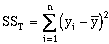 (5-8)
(5-8)
where  is the mean y value for the data set. The second term is the sum of squares
due to regression error (SSR) (Davis, 1986):
is the mean y value for the data set. The second term is the sum of squares
due to regression error (SSR) (Davis, 1986):
-
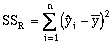 (5-9)
(5-9)
where  i is the calculated regression each xi value. The goodness-of-fit
(R2) can now be calculated as (Davis, 1986):
i is the calculated regression each xi value. The goodness-of-fit
(R2) can now be calculated as (Davis, 1986):
 (5-10)
If the line estimates the data well, the value will be near unity (1.0). This term though
is generally reported as a percentage. Another useful term is the multiple correlation
coefficient (R) (Davis, 1986):
 (5-11)
Again, if the line estimates the data well, the value will be near unity (1.0).
[TOP]
Burden, R.L. and J.D. Faires, 1985, Numerical Analysis, Third Edition, Prindle, Weber, and Schmidt, Boston, pp
342-353.
Davis, John C., 1986 (Second Edition), Statistics and Data Analysis in Geology, John Wiley & Sons, New York.
Englund, E., and A. Sparks, 1988, GEO-EAS, U. S. Environmental Protection Agency, Environmental Monitoring
Systems Laboratory, EPA/600/4-88/033.
McCuen, R.H., 1989, Hydrologic Analysis and Design, Prentice-Hall, Englewood Cliffs, New Jersey.
Moler, C., 1978, LINPACK (Linear algebra FORTRAN77 sub-routines), University of New
Mexico, Argonne National Lab.
Press, W.H., S.A. Teukolsky, W.T. Vettering, and B.P. Flannery, 1992, Numerical
Recipes in C, The Art of Scientific Computing, Second Edition, Cambridge University
Press, New York.
[TOP]
Table of Contents
Previous Chapter
Beginning of this Chapter
Next Chapter