


The histo application is used to calculate and display univariant statistics for
differing data sets. For a sample population histo can be used to calculate basic
statistics such as the mean, and variance. It may also be used to display the behavior
of several different populations at once using stacked histograms and box and whisker
plots. Histo can also be used to infer information about the population, i.e. is the
population normal, using a  2 (chi-squared) test or by plotting the frequency
distribution as a probability plot.
2 (chi-squared) test or by plotting the frequency
distribution as a probability plot.
The histo application is composed of three sections (Figure 6.1); the main menu- bar, the status and log text area, and the drawing or graph area. The menu-bar is used to select all histo commands, the log/status area is used by the program to report important messages or results, and the drawing area is the display area for the histograms.
If "histo.prf" does not exist in the current directory, it is created. This is an ASCII file
and can be edited by the user. See Appendix C for details.
Print Setup:
File:Print Setup works exactly as explained in Chapter 5.
Print:
File:Print generates a Postscript file of the graph, and depending on how the
print options are define in Print Setup, directs this file to the specified print queue, or to
the specified file.
Quit:
File:Quit terminates the program,.
Box and Whisker Plots:
Box and Whisker plots are used to quickly show the mean, median, standard
deviation, 25-75 percentiles, 10-90 percentiles, and the full range of the data. These
plots can give the user a quick feel for the distribution of the data and whether the data
is skewed. An example plot is shown in Figure 6.5a. A key to the different symbols is
shown in Figure 6.5b.
Cumulative Distributions:
A cumulative distribution is similar to the histogram, but it starts at 0.0% on
the left (the data minimum value), and increased to 100.0% on the right (the data
maximum value). At any point in-between, the percent (or number) of data values less
than the X-axis value is plotted (Figure 6.6a). Again Single or Stacked plots can be
used.
1.0 - Cumulative Distributions:
For the 1.0 minus the cumulative distribution, the histogram represents the
percent (or number) of data values greater than the X-axis value (Figure 6.6.b). Like the
histogram and the cumulative distribution plots, Single or Stacked plots can be used.
Probability Plots:
If a Probability Plot option is desired, select Set, or one of the Exceedence or
Rank Order options (Set is just a menu short-cut). The Exceedence Type may be
specified, and the Rank Order Method used to determine the frequency of occurrence of
a variable value can be specified.
The Exceedence Type only affects the labeling on the X-axis. An Exceedence plot indicates the percentage of points which exceed a specified value. A Nonexceedence plot indicates the percentage of points which do not exceed a specified value. The appearance of the graphs otherwise is identical.
The Hazen and Weibull methods are two methods for determining the Rank Order of one data value within the data set. For further details see the histo Mathematics section (Equations 6-12 and 6-13), or refer to McCuen (1989).
It is common in nature that the distribution of a measured parameter has a log distribution (This is set with the Style:Transform Type:Log menu option discussed below). If this is the case, a Normal probability plot will show a curved line (Figure 6.7a). From the curved line, though one can say the data is not normally distributed, but little more. By Log transforming the data, if the line becomes "straight," the probability plot suggests that the data is log-normally distributed (Figure 6.7b).
Y-Axis Type:
Style:Y-Axis Type allows the user to specify how the frequency distribution is
presented on the Y-axis. It can be specified by Count or by Percentage.
Transform Type:
Style:Transform Type allows for either Normal or Log (Base 10) transforms
(Normal implies the data is unaltered). Transformed histograms are shown in Figure
6.3a (Normal) and Figure 6.8 (Log). Transformed probability plots are shown in Figures
6.7a and 6.7b.
Tabulated:
Statistics:Tabulated will display the informational dialog shown in Figure 6.10.
This dialog gives statistical information about the data set and the histogram. Data
such as the data set minimum and maximum, mean, median, variance, standard
deviation, average deviation, skew, kurtosis, 2 test result, and the 10th, 25th, 75th, and
90th percentiles (See the histo Mathematics section on the calculation of these values).
The dialog also displays the number of data points and the extents of the data set.
Note, if the data has been log transformed, these values represent the appropriate
statistics or range based on the log value of each data point. A copy of the statistics
can be printed to the log/status window by pressing the Post Statistics to Log/Status
Window button. Pressing the Post All Columns button will print the statistics for all the
selected data columns (See Data section) to the log/status window. To view different
columns or data sets from the data file, press the Pervious or Next Active Date Set
buttons.
This dialog is described in the Graph:Style section of Chapter 5 (Figure 5.14).
Mesh:
Graph:Mesh is described in Chapter 5 in the Graph:Mesh section (Figure 5.13).
When calculating the frequency distribution for the histogram, the column number (Pos.), X position, and frequency of occurrence within each histogram bar are reported to the log window. NOTE: All calculations are maintained in the log window, and the most recent are presented at the top of the log. An example is shown below for data1.dat using 10 columns:
	Calculation #6
 	   Number of Divisions = 10
	 Pos.       X       Frequency
	-------------------------------------
	     1:      -4.24          9
	     2:      -3.69         29
	     3:      -3.14         82
	     4:      -2.6         132
 	     5:      -2.05        138
 	     6:      -1.51         89
 	     7:      -0.959        56
	     8:      -0.413        27
	     9:       0.133         9
	    10:       0.68          5
There are three methods to load a file in histo. The first is to execute histo from the UNIX prompt and open the file from the menu, the second is to pass the file as a command line argument, and the third is to define the file name in the program preference file. To open a file from the main menu, execute histo from the UNIX prompt:
Once in the application, select the File:Open menu option. The pop-up dialog shown in Figure 5.2 will appear. Select the desired file. Once a file has been selected the graph of the data will be drawn. To open a file from the command line, enter at the UNIX prompt:
For example:
will open the graph file shown in Figure 6.8, and
will open the same data file, but it will specify the x-axis is a log axis. NOTE: in both Figures 6.4 and 6.8, other variables then those passed on the command line were defined. These variables could have been set using the menus, or using a preference file (Appendix C). A preference file is used to define user preferred variable default values. Every time histo runs, it searches the current working directory for the file histo.prf. If it exists, histo reads the file and sets the variables as specified. This is the third way to open a file, because one of the arguments in the preference file is the name of the graph file.
Syntax:
Meaning of flag symbols:
NOTES:
If no entry is required for flag, flag command executed.
Flag Definitions:
| -d1090 | = | draw 10-90 percentile | default = 1 | ||
|
|||||
| -d2575 | = | draw 25-75 percentile | default = 1 | ||
|
|||||
| -dcl to -d20 | = | active data column | default = a (1),0 (2-20) | ||
|
|||||
| -dive | = | histogram bar ending location | default = data maximum | ||
| -divn | = | number of divisions (histogram bars) | default = 10 | ||
| -divr | = | division method | default = 0 | ||
|
|||||
| -divs | = | histogram bar starting location | default = data minimum | ||
| -divw | = | division width (histogram bars) | default = data range / 10.0 | ||
| -dm | = | draw mean | default = 1 | ||
|
|||||
| -dme | = | draw median | default = 1 | ||
|
|||||
| -dmm | = | draw minimum and maximum data extents | default = 1 | ||
|
|||||
| -dsd | = | draw standard deviation | default = 1 | ||
|
|||||
| -esp | = | exageration scale priority | default = 0 | ||
|
|||||
| -exceed | = | exceedence on nonexceedence switch | default = 0 | ||
|
|||||
| -fnt1 | = | main title font | default = Helvetica-Bold | ||
| -fnt2 | = | secondary title font | default = Helvetica-Bold | ||
| -fnt3 | = | axes label font | default = Helvetica | ||
| -fnt4 | = | division font | default = Helvetica | ||
| -fnt5 | = | annotation font | default = Helvetica | ||
| -fnt6 | = | mouse position font | default = Helvetica | ||
| -fnts1 | = | main title font size | default = 24.0 | ||
| -fnts2 | = | main title font size | default = 15.0 | ||
| -fnts3 | = | main title font size | default = 15.0 | ||
| -fnts4 | = | main title font size | default = 12.0 | ||
| -fnts5 | = | main title font size | default = 10.0 | ||
| -fnts6 | = | main title font size | default = 12.0 | ||
| -ft | = | frequency type | default = 0 | ||
|
|||||
| -gst | = | frequency type | default = 0 | ||
|
|||||
| -help | = | give this help menu | |||
| -lc {} | = | line color | default = variable | ||
|
|||||
| -lgf | = | log file name | defalut = "log.dat" | ||
| -lglp | = | line legend position | default = 1 | ||
|
|||||
| -lgmw | = | maximum line legend width | default = 200 | ||
| -lpbm | = | page bottom margin | default = 1.5 | ||
| -lpc | = | number of copies to print | default = 1 | ||
| -lpd | = | print destination | default = 0 | ||
|
|||||
| -lpf | = | print filename | default = "junk.ps" | ||
| -lph | = | print header page | default = 0 | ||
|
|||||
| -lplm | = | page left margin | default = 1.5 | ||
| -lpo | = | print orientation | default = 0 | ||
|
|||||
| -lppsext | = | search extention for postscript files | default = "*.ps" | ||
| -lpq | = | print queue | default = "ps" | ||
| -lpr | = | print file at specified orientations | |||
| -lprm | = | page right margin | default = 1.0 | ||
| -lps | = | print output | default = 0 | ||
|
|||||
| -lptm | = | page top margin | default = 1.5 | ||
| -lsfl {} | = | fill line symbol | default = 0 | ||
|
|||||
| -lsc {} | = | line symbol color | default = variable | ||
|
|||||
| -lssz {} | = | line synbol size | default = 9.0 | ||
| -lsty {} | = | line symbol type | default = 0 | ||
|
|||||
| -ltk {} | = | line thickness | default = 1.0 | ||
| -lty {} | = | line type | default = 0 | ||
|
|||||
| -md | = | dash mesh | default = 0 | ||
|
|||||
| -mox | = | X mesh origin | default = 0.0 | ||
| -moy | = | Y mesh origin | default = 0.0 | ||
| -ms | = | use mesh | default = 0 | ||
|
|||||
| -mx | = | X mesh frequency | default = 1/10 DX | ||
| -my | = | Y mesh frequency | default = 1/10 DY | ||
| -nt | = | show normal curve(s) | default = 1 | ||
|
|||||
| -prf | = | preference file name | defalut = "histo.prf" | ||
| -pt | = | plot type | default = 0 | ||
|
|||||
| -rfh | = | screen refresh | default = 0 | ||
|
|||||
| -ro | = | rank order option | default = 1 | ||
|
|||||
| -se | = | series file ending ID | default = last series ID | ||
| -ss | = | series file starting ID | default = 1 | ||
| -sttl | = | Secondary title | default = " " | ||
| -tt | = | transform type | default = 0 | ||
|
|||||
| -ttl | = | Main title | default = Filename | ||
| -xfmt | = | Number of decimal places for X-axis | default = ".2f" | ||
| -xlabel | = | X-axis label | default = "X" | ||
| -xmax | = | Graph X-maximum | default = Data Maximum | ||
| -xmin | = | Graph X-minimum | default = Data Minimum | ||
| -xMt | = | X main tic frequency | default = 1/10 DX | ||
| -xmt | = | Number of minor X tics | default = 5 | ||
| -xto | = | X axis label origin | default = 0.0 | ||
| -xy | = | xy ratio | default = 1.5 | ||
| -yfmt | = | Number of decimal places for X-axis | default = ".2f" | ||
| -ylabel | = | X-axis label | default = "Y" | ||
| -ymax | = | Graph Y-maximum | default = Data Maximum | ||
| -ymin | = | Graph Y-minimum | default = Data Minimum | ||
| -yMt | = | X main tic frequency | default = 1/10 DY | ||
| -ymt | = | Number of minor Y tics | default = 5 | ||
| -ys | = | Y-axis exageration relative to X-axis | default = Calculated | ||
| -yto | = | X axis label origin | default = 0.0 |
		1.0	23.23	0.123	1.45
		2.21	12.34	0.00123	1.56
		3.31	12.98	0.231	2.34
		4.56	8.21	0.345	1.76
		5.12	10.92	0.456	1.43
		.	.	.	.
		.	.	.	.
		.	.	.	.
This data set has four columns. Each column could be analyzed by selecting and plotting the data using the Data Column option under Data:Modify.
	VARIABLE LENGTH SETS
	2		Number of data sets
	4		Points in data set #1
	12.3
	15.5
	1.3
	99.5
	3		Points in data set #2
	0.012
	0.435
	0.098
The format is:
For each set:
GEO-EAS/GSLIB:
As described in Chapter 5, histo will support GEO-EAS file formats.
Gridded:
In UNCERT many gridded fdata setsare generated and used in modeling. Often
it is important to examine the statistics of the data sets or grids. These data sets are
directly readable by histo. For a complete description of the file formats for *.srf
and *.bck files see Chapters 11 and
13.
2) test. These tools allow the user to determine
if the data are likely to be normally distributed. If they appear not to be normally
distributed, a logarithmic transform or another type transform may be appropriate. By
viewing histograms of the data, a bimodal distribution may be identified which suggests
there is more then one population of data in the data set (i.e. more then one process
controlled the values sampled). If the data is bimodally distributed, it may be possible
to separate the populations and check the normality of each population.
For a data set with n samples, the sample mean ( ) is calculated as:
 (6-1)
(6-1)where xi = an individual sample value. The median (M) is calculated by (Press et al, 1992):
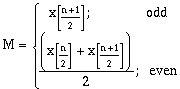 (6-2)
(6-2)The unbiased sample variance (s2) may be calculated as (McCuen, 1989):
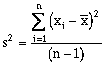 (6-3)
(6-3)and the standard deviation (s) is defined as:
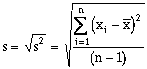 (6-4)
(6-4)The standardized skew (g) is defined as (Press et al, 1992):
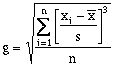 (6-5)
(6-5)where the skew is a measure of symmetry. A symmetric distribution will have a skew of zero, and non-symmetric skews will be positive or negative, as shown in Figure 6.11a (McCuen, 1989). The 4th order moment, kurtosis (k), is defined (Press et al, 1992):
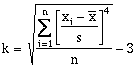 (6-6)
(6-6)The kurtosis is a measure of the peakedness or flatness of the distribution relative to a normal distribution. A positive kurtosis reflects a peaked distribution (leptokurtic) and a negative kurtosis is relatively flat (platykuric) (Figure 6.11b, Press et al, 1992).
In addition to these statistical terms, the 10th, 25th, 75th, and 90th percentiles are often calculated. These are simply read from the sorted data set.
25th = xn*0.25
75th = xn*0.75
90th = xn*0.9
Calculation of Normal-Distribution and the Development of a Probability Distribution
Graph Axis:
Normal-distribution with associated z values:
Once the moments for the data have been calculated, it is important to
determine if the data are normally distributed, or to transform it, or to split the data so
that they may be treated as normally distributed. One test for this is the 2 test; it is
calculated as:
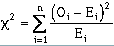 (6-7)
(6-7)where Oi = the observed frequency of values over a range, and Ei = the expected frequency of values over a range. To determine the expected frequency, the normal distribution itself must be evaluated. The expected frequency is based on the probability y samples will occur between two values. It is calculated by:
 (6-8)
(6-8)
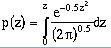 (6-10)
Note that Equation 6-9 cannot be directly integrated and must be estimated numerically or evaluated from tabulated values. Below is a table of calculated probabilities for given z values (The table used by the software uses double precision values (non-truncated at the fourth decimal place)). These values agree with tables by McCuen (1989) to the fourth significant digit; the differences at the fifth place and beyond may only be in rounding.
------+-------------------------------------------------------------------------------
  Z   |  0.00    0.01    0.02    0.03    0.04    0.05    0.06    0.07    0.08    0.09
------+-------------------------------------------------------------------------------
-3.90 | 0.0000  0.0000  0.0000  0.0000  0.0000  0.0000  0.0000  0.0000  0.0000  0.0000
-3.80 | 0.0000  0.0000  0.0000  0.0000  0.0000  0.0000  0.0000  0.0000  0.0000  0.0000
-3.70 | 0.0001  0.0001  0.0001  0.0001  0.0001  0.0001  0.0001  0.0001  0.0000  0.0000
-3.60 | 0.0001  0.0001  0.0001  0.0001  0.0001  0.0001  0.0001  0.0001  0.0001  0.0001
-3.50 | 0.0002  0.0002  0.0002  0.0002  0.0002  0.0002  0.0002  0.0001  0.0001  0.0001
      |
-3.40 | 0.0003  0.0003  0.0003  0.0003  0.0003  0.0002  0.0002  0.0002  0.0002  0.0002
-3.30 | 0.0005  0.0004  0.0004  0.0004  0.0004  0.0004  0.0004  0.0003  0.0003  0.0003
-3.20 | 0.0007  0.0006  0.0006  0.0006  0.0006  0.0005  0.0005  0.0005  0.0005  0.0005
-3.10 | 0.0009  0.0009  0.0009  0.0008  0.0008  0.0008  0.0008  0.0007  0.0007  0.0007
-3.00 | 0.0013  0.0013  0.0012  0.0012  0.0012  0.0011  0.0011  0.0010  0.0010  0.0010
      |
-2.90 | 0.0018  0.0018  0.0017  0.0017  0.0016  0.0016  0.0015  0.0015  0.0014  0.0014
-2.80 | 0.0025  0.0024  0.0024  0.0023  0.0022  0.0022  0.0021  0.0020  0.0020  0.0019
-2.70 | 0.0034  0.0033  0.0032  0.0031  0.0030  0.0030  0.0029  0.0028  0.0027  0.0026
-2.60 | 0.0046  0.0045  0.0044  0.0042  0.0041  0.0040  0.0039  0.0038  0.0037  0.0035
-2.50 | 0.0062  0.0060  0.0058  0.0057  0.0055  0.0054  0.0052  0.0051  0.0049  0.0048
      |
-2.40 | 0.0082  0.0080  0.0077  0.0075  0.0073  0.0071  0.0069  0.0067  0.0065  0.0064
-2.30 | 0.0107  0.0104  0.0102  0.0099  0.0096  0.0094  0.0091  0.0089  0.0086  0.0084
-2.20 | 0.0139  0.0135  0.0132  0.0129  0.0125  0.0122  0.0119  0.0116  0.0113  0.0110
-2.10 | 0.0179  0.0174  0.0170  0.0166  0.0162  0.0158  0.0154  0.0150  0.0146  0.0142
-2.00 | 0.0227  0.0222  0.0217  0.0212  0.0207  0.0202  0.0197  0.0192  0.0188  0.0183
      |
-1.90 | 0.0287  0.0281  0.0274  0.0268  0.0262  0.0256  0.0250  0.0244  0.0238  0.0233
-1.80 | 0.0359  0.0351  0.0344  0.0336  0.0329  0.0322  0.0314  0.0307  0.0301  0.0294
-1.70 | 0.0446  0.0436  0.0427  0.0418  0.0409  0.0401  0.0392  0.0384  0.0375  0.0367
-1.60 | 0.0548  0.0537  0.0526  0.0516  0.0505  0.0495  0.0485  0.0475  0.0465  0.0455
-1.50 | 0.0668  0.0655  0.0643  0.0630  0.0618  0.0606  0.0594  0.0582  0.0571  0.0559
      |
-1.40 | 0.0808  0.0793  0.0778  0.0764  0.0750  0.0736  0.0722  0.0708  0.0695  0.0681
-1.30 | 0.0968  0.0951  0.0935  0.0918  0.0902  0.0885  0.0869  0.0854  0.0838  0.0823
-1.20 | 0.1151  0.1132  0.1113  0.1094  0.1075  0.1057  0.1039  0.1021  0.1003  0.0986
-1.10 | 0.1357  0.1336  0.1314  0.1293  0.1272  0.1251  0.1231  0.1211  0.1191  0.1171
-1.00 | 0.1587  0.1563  0.1539  0.1516  0.1492  0.1469  0.1446  0.1424  0.1401  0.1379
      |
-0.90 | 0.1841  0.1815  0.1789  0.1763  0.1737  0.1711  0.1686  0.1661  0.1636  0.1612
-0.80 | 0.2119  0.2091  0.2062  0.2033  0.2005  0.1977  0.1950  0.1922  0.1895  0.1868
-0.70 | 0.2421  0.2389  0.2359  0.2328  0.2297  0.2267  0.2237  0.2207  0.2178  0.2148
-0.60 | 0.2743  0.2710  0.2677  0.2644  0.2612  0.2579  0.2547  0.2515  0.2483  0.2452
-0.50 | 0.3086  0.3051  0.3016  0.2982  0.2947  0.2913  0.2878  0.2844  0.2811  0.2777
      |
-0.40 | 0.3447  0.3410  0.3373  0.3337  0.3301  0.3265  0.3229  0.3193  0.3157  0.3122
-0.30 | 0.3822  0.3784  0.3746  0.3708  0.3670  0.3633  0.3595  0.3558  0.3521  0.3484
-0.20 | 0.4208  0.4169  0.4130  0.4091  0.4053  0.4014  0.3975  0.3937  0.3898  0.3860
-0.10 | 0.4603  0.4563  0.4523  0.4484  0.4444  0.4405  0.4365  0.4326  0.4287  0.4248
 0.00 | 0.5000  0.4961  0.4921  0.4881  0.4841  0.4802  0.4762  0.4722  0.4682  0.4642
      |
 0.00 | 0.5000  0.5039  0.5079  0.5119  0.5159  0.5198  0.5238  0.5278  0.5318  0.5358
 0.10 | 0.5397  0.5437  0.5477  0.5516  0.5556  0.5595  0.5635  0.5674  0.5713  0.5752
 0.20 | 0.5792  0.5831  0.5870  0.5909  0.5947  0.5986  0.6025  0.6063  0.6102  0.6140
 0.30 | 0.6178  0.6216  0.6254  0.6292  0.6330  0.6367  0.6405  0.6442  0.6479  0.6516
 0.40 | 0.6553  0.6590  0.6627  0.6663  0.6699  0.6735  0.6771  0.6807  0.6843  0.6878
      |
 0.50 | 0.6914  0.6949  0.6984  0.7018  0.7053  0.7087  0.7122  0.7156  0.7189  0.7223
 0.60 | 0.7257  0.7290  0.7323  0.7356  0.7388  0.7421  0.7453  0.7485  0.7517  0.7548
 0.70 | 0.7579  0.7611  0.7641  0.7672  0.7703  0.7733  0.7763  0.7793  0.7822  0.7852
 0.80 | 0.7881  0.7909  0.7938  0.7967  0.7995  0.8023  0.8050  0.8078  0.8105  0.8132
 0.90 | 0.8159  0.8185  0.8211  0.8237  0.8263  0.8289  0.8314  0.8339  0.8364  0.8388
      |
 1.00 | 0.8413  0.8437  0.8461  0.8484  0.8508  0.8531  0.8554  0.8576  0.8599  0.8621
 1.10 | 0.8643  0.8664  0.8686  0.8707  0.8728  0.8749  0.8769  0.8789  0.8809  0.8829
 1.20 | 0.8849  0.8868  0.8887  0.8906  0.8925  0.8943  0.8961  0.8979  0.8997  0.9014
 1.30 | 0.9032  0.9049  0.9065  0.9082  0.9098  0.9115  0.9131  0.9146  0.9162  0.9177
 1.40 | 0.9192  0.9207  0.9222  0.9236  0.9250  0.9264  0.9278  0.9292  0.9305  0.9319
      |
 1.50 | 0.9332  0.9345  0.9357  0.9370  0.9382  0.9394  0.9406  0.9418  0.9429  0.9441
 1.60 | 0.9452  0.9463  0.9474  0.9484  0.9495  0.9505  0.9515  0.9525  0.9535  0.9545
 1.70 | 0.9554  0.9564  0.9573  0.9582  0.9591  0.9599  0.9608  0.9616  0.9625  0.9633
 1.80 | 0.9641  0.9649  0.9656  0.9664  0.9671  0.9678  0.9686  0.9693  0.9699  0.9706
 1.90 | 0.9713  0.9719  0.9726  0.9732  0.9738  0.9744  0.9750  0.9756  0.9762  0.9767
      |
 2.00 | 0.9773  0.9778  0.9783  0.9788  0.9793  0.9798  0.9803  0.9808  0.9812  0.9817
 2.10 | 0.9821  0.9826  0.9830  0.9834  0.9838  0.9842  0.9846  0.9850  0.9854  0.9858
 2.20 | 0.9861  0.9865  0.9868  0.9871  0.9875  0.9878  0.9881  0.9884  0.9887  0.9890
 2.30 | 0.9893  0.9896  0.9898  0.9901  0.9904  0.9906  0.9909  0.9911  0.9914  0.9916
 2.40 | 0.9918  0.9920  0.9923  0.9925  0.9927  0.9929  0.9931  0.9933  0.9935  0.9936
      |
 2.50 | 0.9938  0.9940  0.9942  0.9943  0.9945  0.9946  0.9948  0.9949  0.9951  0.9952
 2.60 | 0.9954  0.9955  0.9956  0.9958  0.9959  0.9960  0.9961  0.9962  0.9963  0.9965
 2.70 | 0.9966  0.9967  0.9968  0.9969  0.9970  0.9970  0.9971  0.9972  0.9973  0.9974
 2.80 | 0.9975  0.9976  0.9976  0.9977  0.9978  0.9978  0.9979  0.9980  0.9980  0.9981
 2.90 | 0.9982  0.9982  0.9983  0.9983  0.9984  0.9984  0.9985  0.9985  0.9986  0.9986
      |
 3.00 | 0.9987  0.9987  0.9988  0.9988  0.9988  0.9989  0.9989  0.9990  0.9990  0.9990
 3.10 | 0.9991  0.9991  0.9991  0.9992  0.9992  0.9992  0.9992  0.9993  0.9993  0.9993
 3.20 | 0.9993  0.9994  0.9994  0.9994  0.9994  0.9995  0.9995  0.9995  0.9995  0.9995
 3.30 | 0.9995  0.9996  0.9996  0.9996  0.9996  0.9996  0.9996  0.9997  0.9997  0.9997
 3.40 | 0.9997  0.9997  0.9997  0.9997  0.9997  0.9998  0.9998  0.9998  0.9998  0.9998
      |
 3.50 | 0.9998  0.9998  0.9998  0.9998  0.9998  0.9998  0.9998  0.9999  0.9999  0.9999
 3.60 | 0.9999  0.9999  0.9999  0.9999  0.9999  0.9999  0.9999  0.9999  0.9999  0.9999
 3.70 | 0.9999  0.9999  0.9999  0.9999  0.9999  0.9999  0.9999  0.9999  1.0000  1.0000
 3.80 | 1.0000  1.0000  1.0000  1.0000  1.0000  1.0000  1.0000  1.0000  1.0000  1.0000
 3.90 | 1.0000  1.0000  1.0000  1.0000  1.0000  1.0000  1.0000  1.0000  1.0000  1.0000
Determining the probability that y of n sample's occur in a given range is calculated by
(McCuen, 1989):
 (6-11)
From this relationship, not only can we evaluate normality based on the 2 test, but
this distribution can be used to develop probability plots (NOTE: On probability paper,
the probability axis is non-linear and non-logarithmic. Its scale can be determined as a
function of z and p(z)).
To develop the probability plot, the data must be rank ordered (sorted). Two common methods are presented by Weibull (pw) and Hazen (ph) (McCuen, 1989) and the expected value for a given rank is calculated as:
where n is the number of samples and i is the rank-order of the given sample. These methods generate slightly different results, but either method is valid. Which method is used is largely a matter of user preference, and the user's impression of what works best for a particular data set.
Press, W.H., S.A. Teukolsky, W.T. Vettering, and B.P. Flannery, 1992, Numerical Recipes in C, The Art of Scientific Computing, Second Edition, Cambridge University Press, New York, pps. 612-614.
 (6-9)
(6-9) (6-12)
 (6-13)