Chapter 16: Mt3dmain





Mt3dmain is a graphical user interface for MT3D, a modular three-dimensional
transport program developed by Papadopulos and Associates for the U.S.
Environmental Protection Agency (EPA). MT3D is a program designed to model
contaminant transport based on a pre-solved ground-water flow model (MODFLOW is
often used to solve the ground water flow equations (Chapter 15). MT3D uses the
solution aquifer heads to base the transport results). In its basic form, MT3D can be
difficult, or awkward to use. The mt3dmain program module is designed to simplify
data entry, model editing, and analysis of results.
This chapter goes into the details of using mt3dmain as an interface for MT3D.
It however does not explain the theory or use of MT3D, that is better left to the MT3D
user's manual (Zheng, 1990).
- WARNING: To use mt3dmain and MT3D effectively, you must have the MT3D user's
manual, and it should be readily available whenever you are building data sets
with mt3dmain. In the current release, mt3dmain does not error check data file
formats; this can lead to incorrect numbers for any variable, and it can cause
"segmentation faults" which will terminate mt3dmain. To find the problem, the
data files may have to be examined line by line to determine where the problem
is. This can only be done if the MT3D user's manual is available!
The mt3dmain application is composed of two sections; the main menu-bar, and
the status and log text area. The menu-bar is used to select all mt3dmain commands,
and the log/status area is used by the program to report important messages or results.
In addition to the main window and supporting pop-up dialog windows, a graphical
editor is available for creating and modifying two-dimensional arrays. Mt3dmain also
use's other UNCERT (grid, contour, surface, and block) modules for visualizing model
output.
- NOTE: There is a public domain (Zheng, 1990, EPA) version of MT3D and a
proprietary version (Zheng, 1990, Papadopulos). Both version are supported by
this interface.
Menu Items
Examples
Command Line Arguments
File Formats
Bibliography
The Main Menu:
The main menu controls nearly all the program operations; files can be opened
and saved, data files can be created and modified, MT3D can be executed, graphics can
be plotted, and help can be requested. For mt3dmain there are eight items on the main
menu:
Project,
Packages,
Run,
View,
Simulator,
Network,
Log, and
Help
(Figure 16.1).
Project controls project file handling (opening, saving, naming project files), and allows
the user to quit the application. Project is not a feature of MT3D, but it allows a
complete set of MT3D data files to be handled as a set; this option controls the loading,
and saving of these "project" files. This menu-bar option also allows the user to quit the
application. Packages allows the user to individually load, modify, or save and MT3D
package data file. Run executes MT3D using the currently defined data files. View
allows the user to view the standard text output file or view the model results using grid
(Chapter 10) and contour (Chapter 11),
surface (Chapter 12), or block (
Chapter 13). Simulator and Network currently are not installed, but will allow MT3D to be run using
different data files describing material distributions simultaneously on different
computers over the network. Log allows the user to save to a file all information printed
to the log-status window. Help gives the user a selection of pop-up help topics. Each
menu item is fully described below with all the available options.
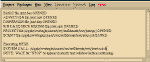 Figure 16.1
[TOP] [SYNTAX]
Project:
The Project sub-menu options control project file handling, and exiting the
application. The options include Open Project, View Project, Save Project, Save
Preferences, Quit, and Quit Without Saving.
Open Project:
Selecting Project:Open Project generates a pop-up dialog which allows the user to
select an existing data file. This dialog functions as the File:Open dialog in Figure 5.2
(Plotgraph - Chapter 5) and allows the user to select an existing project file. The default
project file name extension, though is "*.prj".
View Project:
Project:View Project pops up a simple screen editor with the last opened or saved
version of the project file.
Save Project:
Project:Save saves the name of the MT3D files currently being used. If a save file
has already been opened, the data are simply saved. If a save file has not been selected
yet, a pop-up dialog similar to that used in File:Open (Figure 5.2) is created. The main
difference between the Open and the Save dialog is that to save a file, it does not have to
pre-exist. For a description of how the dialog works, see the File:Save section in
Chapter 5.
Save Preferences:
When using programs with many user options, it is not possible for the program
to always pick reasonable default values for each parameter or input variable. For this
reason preference files were created (See Appendix C). These allow the user to define a
unique set of "defaults" applicable to the particular project. When File:Save Preferences
is selected, mt3dmain determines how all the input variables are currently defined and
writes them to the file "mt3dmain.prf."
- WARNING: if "mt3dmain.prf" already exists, you will be warned that it is about to be
over-written. If you do not want the old version destroyed you must move it to a
new file (e.g. the UNIX command mv mt3dmain.prf mt3dmain.old.prf would be
sufficient). When you press OK the old version will be over-written! This cannot
be done currently from within the application. To rename the you will have to
execute the UNIX mv command from a UNIX prompt in another window.
If "mt3dmain.prf" does not exist in the current directory, it is created. This is an ASCII
file and can be edited by the user. See Appendix C for details.
Quit:
Project:Quit terminates the program, but if changes have been made to any
MT3D package, the user will first be queried to supply appropriate filenames for the
modified files. Also, if packages have been added, deleted, or substituted with a new
file, the project file will also have to be saved.
Quit Without Saving:
Project:Quit Without Saving terminates the program regardless of any additions
to any MT3D data file. Once pressed there is no option to change your mind.
[TOP] [SYNTAX]
Packages:
To use MT3D, there are a number of different packages that can be used:
Flow File,
Basic,
Advection,
Dispersion,
Sink & Source Mixing, and
Chemical Reaction.
The only one strictly required is the Basic package. When using the Packages pull-down
menu, all of the available MT3D packages are displayed. The titles are also color coded;
RED indicates that with the current settings, this package is required, but has not been
defined. GREEN also means it is required, but it is defined sufficiently for MT3D to run
(This does not mean all data entries are correct for the particular model). BLACK
means that the package is not currently needed, and it may be ignored.
Each package has a pull-down sub-menu with five menu options: Open Package,
View Package:Save, Save as, and Modify. The Open option generates a dialog similar to
that shown in Figure 5.2. The dialogs works the same as that dialog too, except that
the default file name extensions are different. For each package the default file name
extensions are:
- BASIC: *.bas
ADVECTION: *.adv
DISPERSION: *.dsp
SINK & SOURCE MIXING: *.ssm
CHEMICAL REACTION: *.rct
These file extensions are strictly conventions, and do not have to be followed. It,
however, is recommended that you follow some consistent naming convention. The
View menu option will display the last saved or loaded version of the data file.
- NOTE: Changes made to a package within the mt3dmain application (using Modify
below) will not be reflected in the data file until the changes have been saved
(see Save below).
The Save menu option will save any modifications, overwriting the last opened or saved
package file. If no package file has been loaded or saved previously, a pop-up dialog will
appear similar to Figure 5.2, but showing the appropriate default file extension. To
save the package file, select an existing file, or enter a new file name, then press the
"Save" button on the dialog. Save as is similar to Save, except that you are queried for
a file name. Modify will generate a new pop-up dialog which will allow the user to enter
all the appropriate data for that particular package. These package dialogs are
discussed below.
- NOTE: The packages and dialogs discussed below explain how and where to enter
data and package parameter values. The meaning of different variables is not
discussed, and is left to the MT3D user's manual (Zheng, 1990).
WARNING: As dialogs are generated, default values will be assumed. These values
though may have no meaning with regard to a particular model and it is the
modeler's responsibility to insure all entries are correct.
NOTE: The LOCAT (Chapter 15, Utility Section) identifiers allowed by MT3D of 100,
101, 102, and 103 will be read from existing files correctly, but the data will be
saved using conventional MODFLOW formatted formatting. When specifying
unit numbers for the different MT3D packages, the following unit numbers must
be used.
	BTN	= 1
	ADV	= 11
	DSP	= 12
	SSM	= 13
	RCT	= 14
	FLOW	= 15  (Ground water flow file)
Flow File:
Selecting Packages:Flow File will generate the pop-up dialog shown in Figure
16.2. Not strictly a package, but never the less needed, is a file defining the ground
water flow field. This file is selected using this dialog and can be created with
MODFLOW (modmain (Chapter 15)) or any other flow package, such that the
requirements in the MT3D User's Manual are meet.
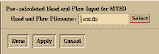 Figure 16.2
Basic:
Selecting Packages:Basic:Modify will generate the pop-up dialog shown in Figure
16.3. This dialog allows all the parameters needed for the Basic package to be defined.
Listed below are the MT3D variable names with a description of the equivalent dialog
entry:
 Figure 16.3
- 1).
- HEADNG(32)
- Heading (#1)
2). - HEADNG(continued)
- Heading (#2)
3). - NLAY
- Layers
NROW - Rows
NCOL - Columns
NPER - Stress Periods
4). - TUNIT
- Name of Time Units (e.g. DAY or HOUR)
LUNIT - Name of Length Units (e.g. FT or CM)
MUNIT - Name of Mass Units (e.g. LBS of KG)
5). - TRNOP(10)
- Transport Options logical flags: Ten entries are required
on this line. Each entry is either a T or an F. One
entry
is required for each of the following package (XXX is a
package that may be added at a later date, but is not
currently used. Each of these options should receive a
F).
- ADV = advection module
DSP = dispersion module
SSM = sink & source module
RCT = chemical reaction module
XXX = Uninstalled
XXX = Uninstalled
XXX = Uninstalled
XXX = Uninstalled
XXX = Uninstalled
XXX = Uninstalled
6). - LAYCON
- Layer Types button: To enter the layer type for each layer
the dialog shown in Figure 16.4 is used. Note, only
the top layer can be unconfined (Type 1). If there are
more than ten layers, use the Next and Previous
buttons to define all layers.
 Figure 16.4
- 7).
- DELR
- Cell Width (along rows (
 x)) button: This calls the 1D
utility array editor (See Chapter 15, U1DREL).
x)) button: This calls the 1D
utility array editor (See Chapter 15, U1DREL).
8). - DELC
- Cell Height (along columns (y)) button: This calls the 1D
utility array editor (See Chapter 15, U1DREL).
9). - HTOP
- Top Elevation button: This defines the top elevation of the
first (top) layer. To define the layer, press the Define
Array Control Data button. This calls the utility 2D
real array editor (See Chapter 15, U2DREL).
The following items (#10 - #13) are entered using the 3-Dimensional Arrays button.
There is one entry for each item for each layer in the model. These arrays are selected
using the pop-up dialog shown in Figure 16.5. Each layer can be specified in the utility
dialog.
 Figure 16.5
- 10).
- DZ
- Layer Thickness button: This calls the utility 2D real
array editor (See Chapter 15, U2DREL).
11). - PRSITY
- Layer Effective Porosity button: This calls the utility 2D real array
editor (See Chapter 15, U2DREL).
12). - ICBUND
- Layer Boundary Conditions button: This calls the utility
2D integer array editor (See Chapter 15, U2DINT).
- <0 = Constant Concentration Cell
0 = Inactive Concentration Cell
>0 = Variable (active) Concentration Cell
13). - SCONC
- Layer Starting Concentration button: This calls the utility
2D real array editor (See Chapter 15, U2DREL).
For the following items, there is only one entry (#14 - #16). These arrays are selected
using the pop-up dialog shown in Figure 16.2.
- 14).
- CINACT
- Dummy Inactive Cell Concentration Value
15). - IFMTCN
- Print Concentration button: This flag indicates whether the
calculated concentration should be printed. It also
serves as a print format code. This value is entered
using the pop-up dialog shown in Figure 16.6. The
concentrations can be printed with different formats,
using a Wrap or a Strip Format. They also can be Not
Printed at all.
 Figure 16.6
IFMTNP
- Print Number of Particles button: This flag indicates
whether the number of particles in each cell should be
printed. It also serves as a print format code. This
value is entered using a pop-up dialog similar to that
shown in Figure 16.6.
IFMTRF - Print Retardation Factor button: This flag indicates
whether the model calculated retardation factor should
be printed. See Figure 16.6.
IFMTDP - Print Dispersion Coefficient button: This flag indicates
whether the model calculated distance weighted
dispersion coefficient should be printed. See Figure
16.6.
SAVUCN - Save Concentration toggle: This flag indicates whether the
concentrations should be saved in the default
unformatted file (MT3D.UCN).
16). - NPRS
- Output Frequency: This flag indicates whether the output
frequency is specified in terms of elapsed time, or
transport step number.
- <0 = simulation results will be printed or saved
whenever the number of transport evens is
an even multiple of NPRS.
0 = simulation results will only be printer and
saved at the end of the simulation.
>0 = simulation results will be printed or saved
according to the record #17 (TIMPRS).
If NPRS (record #16) is greater than 0, the next card needs to be defined for each
output time.
17).
- TIMPRS
- Output Times button: This option creates the pop-up
dialog shown in Figure 16.7. This dialog allows the
user to specify which simulation results are printed to
the standard output file or are saved to the file
MT3D.UCN.
 Figure 16.7
18).
- NOBS
- Number of Observation Points: This is the number of
observation points at which the concentration will be
printed or saved (file MT3D.OBS) at every transport
step.
If NOBS (record #18) is greater the 0, the next card needs to be defined for each
observation point. The values are entered using the pop-up dialog shown in Figure
16.8.
 Figure 16.8
- 19).
- KOBS
- Observation Layer
IOBS - Observation Row
JOBS - Observation Column
20). - CHKMAS
- Save Mass Balance toggle: This flag indicates whether the
mass balance information should be saved in the
default unformatted file (MT3D.MAS).
For each stress period, there must be an entry for each of the following cards (#21 -
#23). These cards are defined by pressing the Define Stress Periods button, and filling
the entries in the pop-up dialog shown in Figure 16.9.
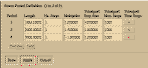 Figure 16.9
- 21).
- PERLEN
NSTP
TSMULT - Define Stress Periods button: An entry is needed for each
stress period. If more then 10 stress periods are
required, using the Previous and Next buttons will
allow you to proceed through them. Length is
equivalent to PERLEN, No. Steps to NSTP, and
Multiplier to TSMULT.
If TSMULT for the stress period is less then or equal to 0.0, enter record #22. This
is done by pressing the appropriate Transport Time Steps button. The pop-up dialog
is Figure 16.10 is used to enter the time step length values.
 Figure 16.10
22).
- TSLNGH
- Time Step Length
22). - DT0
- Transport Step Size: The is the user specified transport
step size. If the value is to large, MT3D may change
the value. If 0.0 or a negative number is entered,
MT3D will calculate a step size (it may not be optimal
though).
MXSTRN - Maximum Number of Transport Steps: If the number of
transport steps within one time step exceeds MXSTRN,
the simulation is terminated.
Advection:
Selecting Packages:Advection:Modify will generate the pop-up dialog shown in
Figure 16.11. This dialog allows all the parameters needed for the Advection package to
be defined. Listed below are the MT3D variable names with a description of the
equivalent dialog entry:
 Figure 16.11
- 1).
- MIXELM
- Advection Solution Scheme menu option: There are four options:
- 1 = Method of Characteristics (MOC)
2 = Modified Method of Characteristics (MMOC)
3 = Hybrid MOC./MMOC (HMOC)
0 = Upstream Finite-Difference
PERCEL - Courant Number
MXPART - Maximum Number of Moving Particles
The information for the remaining cards is entered using the pop-up dialog shown in
Figure 16.12. This dialog is created by pressing the Set Conditional Solution
Parameters button. Note that depending on the Advection Solution Scheme selected
different options will be required. The remaining menu items and text entry fields will
be disabled.
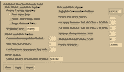 Figure 16.12
- If MIXELM equals 1, 2, or 3 (MOC, MMOC, or HMOC) enter the following record.
2).
- ITRACK
- Particle Tracking Algorithm menu option: There are three options:
- 1 = First-Order Euler
2 = Fourth-Order Runge-Kutta
3 = Runge-Kutta and Euler
WD - Weighting Factor: This value is between 0.0 and 1.0; 0.5 is
normally a good choice.
If MIXELM equals 1 or 3 (MOC or HMOC) enter the following record.
3).
- DCEPS
- Negligible Concentration Gradient
NPLANE - zParticle Placement Pattern: Refer to the MT3D users manual for the
different pattern ID's.
NPL - Number of Initial Particles per Cell to be placed at cells where
DCCELL <= DCEPS.
NPH - Number of Initial Particles per Cell to be placed at cells where
DCCELL > DCEPS.
NPMIN - Minimum Number of Moving Particles Allowed per Cell
NPMAX - Maximum Number of Moving Particles Allowed per Cell
SRMULT - Particle Multiplier
If MIXELM equals 2 or 3 (MMOC or HMOC) enter the following record.
4).
- INTERP
- Concentration Interpolation Method: Set this equal to 1. Linear (1)
is the only option currently available.
NLSINK - Sink Placement Pattern: Refer to the MT3D users manual for
the different pattern ID's.
NPSINK - Number of Particles to Approximate Sink Cells in MMOC scheme.
If MIXELM equals 3 (HMOC) enter the following record.
5).
- DCHMOC
- Critical Relative Concentration Gradient.
Dispersion:
Selecting Packages:Dispersion:Modify will generate the pop-up dialog shown in
Figure 16.13. This dialog allows all the parameters needed for the Dispersion package
to be defined. Listed below are the MT3D variable names with a description of the
equivalent dialog entry:
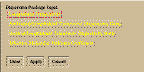 Figure 16.13
- The Longitudinal Dispersivity button allows the user to define card #1 for each item.
The individual layers are defined in the utility dialog (See Chapter 15, Figure 15.31).
1).
- AL
- Longitudinal Dispersivity button: To define the layer, press the
Define Array Control Data button. This calls the utility 2D
real array editor (See Chapter 15, U2DREL).
2). - TRPT
- Horizontal Transverse Dispersivity Ratio button: To define the
layer, press the Define Array Control Data button. This calls
the utility 1D real array editor (See Chapter 15, U1DREL).
3). - TRPV
- Vertical Transverse Dispersivity Ratio button: To define the layer,
press the Define Array Control Data button. This calls the
utility 1D real array editor (See Chapter 15, U1DREL).
4). - DMCOEF
- Effective Molecular Diffusion Coefficient button: To define the
layer, press the Define Array Control Data button. This calls
the utility 1D real array editor (See Chapter 15, U1DREL).
Sink & Source Mixing:
Selecting Packages:Sink & Source Mixing:Modify will generate the pop-up dialog
shown in Figure 16.14. This dialog allows all the parameters needed for the Sink &
Source Mixing package to be defined. Listed below are the MT3D variable names with a
description of the equivalent dialog entry:
 Figure 16.14
- 1).
- FWEL
- Well
FDRN - Drain
FRCH - Recharge
FEVT - Evapotranspiration
FRIV - River
FGHB - General-Head-Dependent Boundary
If any of these options were used in the flow model, its representative flag must
be set to T, otherwise, it should be set to F.
2). - MXSS
- Maximum Number of All Point Sink and Sources simulated in flow
model.
NOTE: This option is not user definable in the mt3dmain interface. This
value is calculated based on the settings in CARD #1.
The Stress Period Parameter button allows the user to define cards 3 - 8 for each
stress period with the pop-up dialog shown in Figure 16.15.
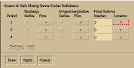 Figure 16.15
If FRCH = T specify whether recharge flux must be described for the stress period.
3).
- INCRCH
- Define Recharge: If this option is true (>=0), a flux array containing the
concentration of recharge flux will be required for the
specified stress period.
If FRCH = T and INCRCH >= 0, an array entry is required, for the recharge flux
described on card 4.
4).
- CRCH
- Recharge Flux (o) button: This is the concentration of recharge
flux. If recharge flux is negative, the recharge acts as a sink
(discharge), otherwise the recharge acts as a source. This
calls the utility 2D real array editor (See Chapter 15,
U2DREL).
If FEVT = T specify whether evapotranspiration flux must be described for the
stress period.
5).
- INCEVT
- Define Evapotranspiration: If this option is true (>=0), a flux array
containing the concentration of evapotranspiration flux will be
required for the specified stress period.
If FEVT = T and INCEVT >= 0, an array entry is required, for the evapotranspiration
flux described on card 6.
6).
- CEVT
- Evapotranspiration Flux (o) button: This is the concentration of
evapotranspiration flux. This calls the utility 2D real array
editor (See Chapter 15, U2DREL).
7).- NSS
- Point Sources Number: This is the number of points sources
whose concentration must be specified.
If NSS > 0, the location, concentration, and type must be specified for each point
source, using the pop-up dialog in Figure 16.16.
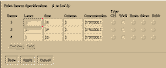 Figure 16.16
8).
- KSS
- Layer
ISS - Row
JSS - Column
CSS - Concentration
ITYPE - Type: Identify whether the concentration source is from a
Constant-Head (CH), Well, Drain, River, or General-Head
Boundary (GHB) cell. Only one option can be selected per
point source ID. If more then one type is applicable, the point
source must be entered multiple times.
Chemical Reaction:
Selecting Packages:Chemical Reaction:Modify will generate the pop-up dialog
shown in Figure 16.17. This dialog allows all the parameters needed for the Chemical
Reaction package to be defined. Listed below are the MT3D variable names with a
description of the equivalent dialog entry:
 Figure 16.17
- 1).
- ISOTHM
- Simulation Sorption Type: There are four sorption option:
-
1 = Linear Isotherm
2 = Freundich Isotherm
3 = Langmuir Isotherm
0 = None (No sorption isotherm used)
IREACT - Simulate First-Order radioactive decay or biodegradation Rate
Reaction
If ISOTHM > 0, cards 2 - 4 must be defined.
2).
- RHOB
- Bulk Density of porous medium button: This calls the utility 1D
real array editor (See Chapter 15, U1DREL).
3). - SP1
- First Sorption Constant button: This calls the utility 1D real array
editor (See Chapter 15, U1DREL).
4). - SP2
- Second Sorption Constant button: This calls the utility 1D real
array editor (See Chapter 15, U1DREL).
If IREACT > 0 (True), cards 5 & 6 must be defined.
5).
- RC1
- First-order rate constant for the Dissolved Phase button: This
calls the utility 1D real array editor (See Chapter 15,
U1DREL).
6). - RC2
- First-order rate constant for the Sorbed Phase button: This calls
the utility 1D real array editor (See Chapter 15, U1DREL).
Utility:
This section is exactly the same as described in the Utility section of modmain
(Chapter 15).
[TOP] [SYNTAX]
Run:
Once all the data packages are built, a script to run MT3D with the current data
files can be built and MT3D can be executed.
Now:
Run:Now will check to see that all package modifications have been saved,
update the run script, and make a system call to execute MT3D.
- NOTE: MT3D is executed with a system call; as a result mt3dmain cannot
independently determine when MT3D is done or if there has been a problem.
The standard MT3D messages, however will still be printed to the xterm window
that launched mt3dmain. When MT3D is complete, "STOP" will be printed in the
xterm window.
Save Script:
This section is exactly the same as described in the Editor section of modmain
(Chapter 15).
[TOP] [SYNTAX]
View:
Once MT3D has been run, the standard output data file can be read, and head
data may be striped from the file and formatted into files compatible with contour,
surface, and block.
- NOTE: These options are not available until MT3D has been run.
WARNING: Because there is currently no error checking on whether MT3D
completed successfully, mt3dmain may try to map head values that do not exist.
Before you try to make a grid or block file, examine the file to insure it has
completed successfully.
MT3D Output File:
This section is exactly the same as described in the Editor section of modmain
(Chapter 15).
as Contoured Surface:
This section is exactly the same as described in the Editor section of modmain
(Chapter 15).
as Block:
This section is exactly the same as described in the Editor section of modmain
(Chapter 15).
[TOP] [SYNTAX]
Simulator:
NOT CURRENTLY INSTALLED.
[TOP] [SYNTAX]
Network:
NOT CURRENTLY INSTALLED.
[TOP] [SYNTAX]
Log:
The Log menu option is supplied to allow the user to save, view, or print all text
which has been written to the log/status window by the program or added by the user
(The log window is also a simple text editor). The options include View Log, Save, Save
as, and Print. View Log, Save, and Save as are similar in operation to the menu options
under File described above.
[TOP] [SYNTAX]
Help:
Help lists topics about the program for which there is help. When a item is
selected a pop-up dialog with a scrolled text area is generated which is similar to Figure
5.15 with the desired information.
[TOP] [SYNTAX]
Editor:
This section is exactly the same as described in the Editor section of modmain
(Chapter 15).
[TOP]
Example of Using Mt3dmain:
An example MODFLOW and MT3D model is included to demonstrate mt3dmain
There are two project files, js.prj and jsmt.prj. This is a simple data set, but it shows the
basic steps of running MODFLOW and MT3D together with modmain and mt3dmain
once the data sets are created.
The first step is to run MODFLOW to create a flow field for MT3D. To do this,
execute modmain, and load the project file js.prj (Use the Project:Open Project menu-bar
option). Opening the project will load several files into the application. These files are
display in the log/status window and are also listed below:
- js.bas : BASIC INPUT PACKAGE
js.bcf : BLOCK CENTERED FLOW INPUT PACKAGE
js.oc : OUTPUT CONTROL INPUT PACKAGE
js.pcg : PRECONDITIONED CONJUGATE-GRADIENT 2 INPUT PACKAGE
js.well : WELL INPUT PACKAGE
When modmain reads in js.bas, it recognized that the BCF, OC, PCG, and WELL
packages are also required. These are defined by the Packages Used and Solver Used
toggles and toggle menu (IUNIT variables, Figure 15.2). To execute MODFLOW with
these modules, select the Run:Now menu-bar option. A pop-up dialog will appear
(similar to Figure 5.2) asking for the name of a script file. Select js.csh. Modmain will
determine what files are needed, build the script file, and tell the UNIX operating system
to execute the script. In the log/status window a message will be printed:
- Executing MODFLOW
SYSTEM CALL: $PWD/js.csh &
NOTE: WAIT for "STOP" to appear in the xterm text window before continuing.
The system call executes the script. Because a shell script is being executed, however,
modmain has no way of knowing when MODFLOW is complete; this has to be
determined by the user. In the xterm window were modmain was executed, when
MODFLOW is done, the word "STOP" will be printed (For this data set, you will only
have to wait a few seconds).
Once MODFLOW is complete, the next step is to run mt3dmain. To do this,
execute mt3dmain, and load the project file jsmt.prj (Use the Project:Open Project menu-
bar option). Opening the project will again load several files into the application. The
files listed below are display in the log/status window:
- jsmt.btn : BASIC INPUT PACKAGE
jsmt.adv : ADVECTION INPUT PACKAGE
jsmt.dsp : DISPERSION INPUT PACKAGE
jsmt.ssm : SINK & SOURCE MIXING INPUT PACKAGE
When mt3dmain reads in jsmt.btn, it recognized that the ADV, DSP, and SSM packages
are also required. These are defined by the Packages Used and Solver Used toggles and
toggle menu (TRNOP variables, Figure 16.2). To execute MT3D with these modules,
select the Run:Now menu-bar option. A pop-up dialog will appear (similar to Figure 5.2)
asking for the name of a script file. Select jsmt.csh. Mt3dmain will determine what files
are needed, build the script file, and tell the UNIX operating system to execute the
script. In the log/status window a message will be printed:
- Executing MT3D
SYSTEM CALL: $PWD/jsmt.csh &
NOTE: WAIT for "STOP" to appear in the xterm text window before continuing.
To view the text file, select the View:MT3D output file menu-bar option. Press the View
Output Filename button (Figure 15.32) and the standard output file generated by MT3D
will be displayed (Figure 15.33). To make a contour map of the model head results,
select the View:as Contoured Surface menu-bar option. The model was steady-state, so
there is only one stress period; it was also, only a one layer X-Y plane model, so the
default values shown in Figure 15.34 are correct. To create a data file containing the X,
Y coordinates and head value for each cell, press the Grid Data button.
Once the file has been created, grid (Chapter 10) is called, and several parameters
are passed to that application. The most important are the X, Y, head value file name,
and the number of columns and rows to use to build the grid (By default, twice the
MT3D rows and columns plus 1 are used; this reduces some of the problems with the
inverse-distance gridding algorithm honoring the MT3D results). For this example, it is
sufficient to select Method:Calculate from the grid menu-bar. When the grid is
calculated, select View:Contour Map from the grid menu-bar, and save the file to
junk.srf (See Chapter 10 for further detail on using grid). Once the file is
saved, the grid
file will be passed to contour (Chapter 11) and displayed. A map similar to
Figure 16.18
will be displayed.
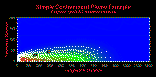 Figure 16.18
[TOP]
Running From the Command Line:
In many cases it is more convenient to run the application completely from the
command line, or at least pass some parameter values in from the command line. The
options listed below allow the user to accomplish almost anything that is possible from
within the X-windows application from the command line (adding lines from different
files is not currently supported). This feature can be useful when the user does not
have a X-windows/Motif terminal available, or when many models need to be processed
quickly, and the operation can be completed in batch mode without user interaction.
Syntax: mt3dmain [project file name]
- NOTE: Parameters in [] brackets are optional.
[TOP]
Setting up Files:
In addition to the MT3D file formats, mt3dmain adds two more file. One is a
project file which is used to keep track of all the files used in a project. The other is a
shell script file which is used to rename files for MT3D, run MT3D, redirect standard
output, and clean up after MT3D when it's done.
Project File:
The project file saves three groups of files, packages files, the ground water flow
file, and files associated with the package files. These later files are defined with a unit
number in the 1D and 2D array utility cards with a LOCAT file unit number different
from the parent package. The files are listed in the following order:
- Associated Files
MT3D Package Files (Basic Package file first)
Ground Water Flow File
For each file, two or three pieces of information are needed: 1) the files unit ID, 2) the
files name, and 3) the unit ID of the owning package (e.g. block.ctc might be owned by
the Block Center Flow Package, unit 11). The third item is only needed for "associated"
files. A sample file might look like:
- 41 top_elev.dat 1
1 sample.btn
11 sample.adv
15 modflow.flo
Script File:
The shell script file has four sections: 1) supplying by fort.# filenames of any
files "associated" with packages, 2) executing MT3D, 3) supplying file names and
answers as requested to MT3D using standard input, and 4) cleaning up after the
model run. For the above example (Project File), the shell script would look like:
	\cp top_elev.dat	fort.41
	mt3d << end-mt3d
	mt3d.out
	sample.btn
	sample.adv
	modflow.flo
	Y
	end-mt3d
	\rm 			fort.41
[TOP]
Bibliography (mt3dmain):
Zheng, C., 1990, MT3D, A Modular Three-Dimensional Transport Model, S.S. United
States Environmental Protection Agency and Papadopulos and Associates, Inc.,
Rockville, Maryland.
Zheng, C., 1991, MT3D, A Modular Three-Dimensional Transport Model, S.S.
Papadopulos and Associates, Inc., Rockville, Maryland.
[TOP]
Table of Contents
Previous Chapter
Beginning of this Chapter
Next Chapter