


Surface is a 2-1/2 dimensional visualization program for viewing regularly gridded data as a color contoured, gradient, or shaded relief surface. It is included in the UNCERT software as a tool to view the values in a two-dimensional array as three dimensional surface. This is referred to as a 2-1/2 dimensional surface because for each X-Y grid location, there is only one Z value. In a true 3D model (see block, Chapter 13) each X-Y location may have multiple Z values. This package is used to view gridded surface data generated from grid (Chapter 10), or for examining layers or cross-sections from sisim (Chapter 14), MODFLOW (McDonald and Harbaugh, 1984) (Chapter 15), and MT3D (Chapter 16) output files. Surface may also be used to display any regularly gridded data, from other sources, DEM's (Digital Elevation Model's) being a common example.
In order to make UNCERT run as smoothly as possible, surface was designed so that many of the various data formats created by other UNCERT modules, and some other commercial software, are compatible with the program, thus reducing continuous modifications often required to accommodate third party software.
The surface application is composed of five sections (Figure 12.1); the main menu-bar, the slider bar bulletin board, the surface orientation block (upper right), the log/status area, and the drawing or graphical area. The menu-bar is used to select all surface commands and the drawing area is the display area for the rendered surfaces. Four slider bars are present to shift the color palette, to tilt and rotate the surface, and to move the light source (These sliders are discussed in more detail in the Palette and View:Parameters menu sections below). In the orientation block, the left arrow points to map north, and the right arrow points towards the light source (This is only appropriate when a shaded relief view type is selected (discussed in View:View Type menu section)). The log/status area is used to display messages to the user about the programs status, and is available for the user to type in notes.
Open:
Selecting File:Open generates a pop-up dialog which allows the user to select an
existing data file. This dialog operates exactly as the Open:File dialog in Chapter 5
(plotgraph Figure 5.2). However, unlike plotgraph the default data file extension is *.srf.
View:
File:View pops up a simple screen editor with the last saved version of the file
being graphed.
Save Preferences:
When using programs with many user options, it is not possible for the program
to always pick reasonable default values for each parameter or input variable. For this
reason preference files were created (See Appendix C). These allow the user to define a
unique set of "defaults" applicable to the particular project. When File:Save Preferences
is selected, surface determines how all the input variables are currently defined and
writes them to the file "surface.prf."
Print Setup:
File:Print Setup works exactly as explained in Chapter 5.
Print:
File:Print generates a Postscript file of the calculated spatial measure, and
depending on how the print options are define in Print Setup, directs this file to the
specified print queue, or to the specified file.
Quit:
File:Quit terminates the program, but if additions have been made to the graph,
the user will first be queried to supply a file to save the changes in.
Active Plane:
When a three-dimensional grid file is loaded, this option becomes available.
View:Active Planes allows the user to specify which plane of the grid will be displayed
and contoured. The pop-up dialog shown in Figure 10.6 (Chapter 11
, contour) controls these options. The contour map can be cut along the X-Y, X-Z, or Y-Z Plane. Once the
Plane orientation has been selected the Layer, Column, or active Row may be selected.
Pressing the Previous or Next buttons will step surface through the selected planes. To
determine which plane you want to select, refer to Figure 10.7 (Chapter 11, contour).
View Type:
There are four surface rendering techniques which are set using View:View
Type:[Gradient] [Grid] [Filled Grid] [Shaded Relief]. Gradient generates a filled surface
where the color coding is based on the slope or gradient of the surface at that location
(Figure 12.2). Grid generates a fishnet or wire mesh surface (Figures 12.3a & 12.3b) with
the colors representing elevation or the magnitude if the z variable. When using this
view type "hidden" lines (lines are not visible because closer surface obstructs their
view) can be used (lines or sections on lines not visible will not be drawn, Figure 12.3a)
or turned off (Figure 12.3b). To set the use of hidden lines see the View:Parameters section on hidden line removal. For the remaining other types, hidden line removal
refers to if the wire grid is drawn. For these other view types, the grid blocks are filled
with a solid color based on elevation or z magnitude (Filled Grid, Figure 12.4), or
obliqueness of the surface to the light source (Shaded Relief, Figure 12.5). On the
shaded relief maps, surfaces being struck directly by the light source will be white,
surfaces facing 180o from the light source will be black, and intermediately oriented
surfaces will be colored with an appropriate shade of gray.
Parameters:
In addition to defining the color coding of the surface map, it is useful to control
the maps Exaggeration, view Angle Above Horizon, view Angle From North, Zoom, Sun
Angle or light source direction, light source Brightness, Hidden Line Removal, and Drop
Box. These parameters are defined in the pop-up dialog shown in Figure 12.6. To
display this dialog, select View:Parameters from the menu-bar.
Exaggeration controls the vertical exaggeration of the map surface. Exaggeration is a multiplicitive factor, therefore legal values are greater then 0.0; 1.0 will give the true relief, values between 0.0 and 1.0 will reduce the exaggeration, and values greater than 1.0 will increase the exaggeration. With many data sets it is useful to substantially increase or decrease this value. If the surface appear flat, the difference in z values is small compared to the horizontal distances; in this case the exaggeration should be increased. If the surface is tall and thin (in the extreme case a vertical line extending off the top and bottom of the screen) the exaggeration should be decreased.
The Angle Above the Horizon and the Angle From North refer to the viewers reference to the surface. In surface the viewer is always looking down on the map surface, and the Angle Above the Horizon describes viewers viewpoint as an angle above the horizontal; 90o is looking straight down on the surface (plan-view map), 0o is looking horizontally across the surface (valid values are 0o to 90o). The Angle From North defines the direction that the viewer is looking, i.e. to look to the north across the map surface the correct Angle From North angle would be 0o (valid values are 0o to 360o).
Zoom allows the user to zoom closer to (enlarge view), or further from (shrink map) the center of the map surface. The default is 1.0, with legal values greater then 0.0. Values greater than 1.0 will zoom closer to the surface, values less than 1.0 will zoom further from the surface.
The Sun Angle and the Brightness control the light source. The Sun Angle describes the direction from the surface map the light source; it is assumed the light source is on the horizon. Legal values are between 0o and 360o. A common direction used is 315o; this puts the sun to the northwest. Even though in the northern hemisphere, the sun will never be in this position, when surface maps are viewed in plan view (Angle From North = 0o, and Angle Above the Horizon = 90o) the eye will interpret the shading correctly so that mountains appear raised and valleys appear depressed. If the light source comes from the southeast (135o), the relief appears reversed. The Brightness makes the bright's brighter, and the darks darker. Valid values are greater than 1.0. This is useful particularly in areas of low relief, and modifying the brightness can accentuate minor surface features.
Hidden Line Removal is used in combination with View:Type. The option behaves slightly differently though depending on which view option is selected. When using the Grid view type "hidden" lines (not visible because closer surface obstructs their view) can be removed (lines or sections on lines not visible will not be drawn, Figure 12.3a) or viewed (Figure 12.3b). For the remaining view types, hidden line removal refers to if a wire mesh is drawn over the map. The grid blocks are filled with a solid color based on elevation, gradient, or obliqueness of the surface to the light source. On low relief surfaces, drawing the mesh can help define the surface texture, however, the mesh can hide the color of the grid blocks and thus still hide the surface texture.
WARNING: The hidden line removal algorithm (when using View:View Type:Grid) has some problems at angles near 0o, 90o, 180o, and 270o. When lines are drawn near vertical on the screen, the algorithm breaks down and the wire mesh rendering appears to be missing portions of line segments.
The gradient at a particular point is not explicitly known and therefore has to be extrapolated from the gridded data. To calculate a gradient vector three points are required (three points define a plane), but because the grid file uses rectangular cells four are used. This unfortunately over defines the plane and the gradient represents an averaged gradient over the cell. A complete description of how the gradient is calculated is presented in the Mathematics section in Chapter 11.
Gradient:Modify pops up the dialog shown in Figure 12.7. This dialog allows the user to specify values for the appropriate parameters. In the dialog, there is a color scale reference. The color scale range can also be extended or narrowed by modifying the Gradient Color Range Minimum and Maximum values. These values are, by default set to the minimum and maximum gradients found for the grid file. This is linear scale, and sometimes a few spots with very steep gradients dominant the color scale. By reducing the maximum gradient for the color scale (often significantly), low gradient zone are better defined, with minimal detail loss to the steep zones. If these values have been changed, or specified on the command line or in a preference file, when a new file is loaded the extents of the gradients are not recalculated. Pressing the Maximize Gradient Range button will recalculate and respecify the gradient range and color palette.
When the gradient view type is activated, the default settings plot the gradients using coded filled blocks (this is non-directional information). The options allowing the use of arrows are currently not supported (Use contour (Chapter 11) if directional (arrow) information is needed).
Fonts:Modify is largely described in Chapter 5 in the Fonts:Modify section (Figures 5.10 and 5.11), but the font selection for surface is slightly different (Figure 12.8). Different fonts may be selected for the Main Title, Annotations, the North and Sun Direction Arrow labels, and the Axes Division Numbers.
There are three methods to load a file in surface. The first is to execute surface from the UNIX prompt and open the file from the menu, the second is to pass the file as a command line argument, and the third is to define the file name in the program preference file. To open a file from the main menu, execute surface from the UNIX prompt:
Once in the application, select the File:Open menu option. The pop-up dialog shown in Figure 5.2 will appear. Select the desired file. Once a file has been selected the graph of the data will be drawn. To open a file from the command line, enter at the UNIX prompt:
For example:
will open the graph file shown in Figure 12.4, and
will open the file and plot it with a gray palette using shaded relief (Figure 12.5). NOTE: in both Figures 12.4 and 12.5, other variables then those passed on the command line could have been defined. These variables could have been set using the menus, or using a preference file (Appendix C). A preference file is used to define user preferred variable default values. Every time surface runs, it searches the current working directory for the file surface.prf. If it exists, surface reads the file and sets the variables as specified. This is the third way to open a file, because one of the arguments in the preference file is the name of the surface file.
Syntax:
Meaning of flag symbols:
NOTES:
Flag Definitions:
| -bt | = | brightness of light source | default = 1 | ||
| -colcut | = | cutoff colors outside palette range | default = 0 | ||
|
|||||
| -cmax | = | maximum color palette value | default = data set maximum | ||
| -cmin | = | minimum color palette value | default = data set minimum | ||
| -db | = | draw drop box | default = 1 | ||
|
|||||
| -ex | = | exaggeration | default = 1.0 | ||
| -fnt1 | = | main title font | default = Helvetica-Bold | ||
| -fnt2 | = | secondary title font | default = Helvetica-Bold | ||
| -fnt3 | = | arrow label font | default = Helvetica | ||
| -fnt4 | = | axes division label font | default = Helvetica | ||
| -fnts1 | = | main title font size | default = 15.0 | ||
| -fnts2 | = | secondary title font size | default = 12.0 | ||
| -fnts3 | = | arrow label font size | default = 12.0 | ||
| -fnts4 | = | axes division label font size | default = 10.0 | ||
| -gdmax | = | maximum gradient | default = steepest gradient | ||
| -gdmin | = | minimum gradient | default = shallowest gradient | ||
| -help | = | give this help menu | |||
| -hl | = | hide lines | default = 1 | ||
|
|||||
| -hz | = | viewing angle above horizon | default = 25.0 | ||
| -lgf | = | log file name | default = "log.dat" | ||
| -lpbm | = | page bottom margin | default = 1.5 | ||
| -lpc | = | number of copies to print | default = 1 | ||
| -lpd | = | print destination | default = 0 | ||
|
|||||
| -lpf | = | print filename | default = "junk.ps" | ||
| -lph | = | print header page | default = 0 | ||
|
|||||
| -lplm | = | page left margin | default = 1.5 | ||
| -lpo | = | print orientation | default = 0 | ||
|
|||||
| -lppsext | = | search extention for postscript files | default = "*.ps" | ||
| -lpq | = | print queue | default = "ps" | ||
| -lpr | = | print file at specified orientations | |||
| -lprm | = | page right margin | default = 1.0 | ||
| -lps | = | print output | default = 0 | ||
|
|||||
| -lptm | = | page top margin | default = 1.5 | ||
| -pal | = | user specified color palette file | default = " " | ||
| -pl | = | color palette | default = 0 | ||
|
|||||
| -prf | = | preference file name | defalut = "contour.prf" | ||
| -rfh | = | screen refresh | default = 0 | ||
|
|||||
| -rt | = | viewing direction | default = 45.0 | ||
| -sn | = | direction to sun (light source) | default = 315.0 | ||
| -vp | = | show map scale | defalut = 0 | ||
|
|||||
| -vpc | = | active column view plane | defalut = 1 | ||
| -vpl | = | active layer view plane | defalut = 1 | ||
| -vpr | = | active row view plane | defalut = 1 | ||
| -vt | = | show map scale | defalut = 0 | ||
|
|||||
| -zm | = | zoom | default = 1.0 |
An example command might be (typed on one line):
This command produces the graph shown on the cover of the manual.
Rotations and Transformations:
The initial step in transforming the real world data coordinates is to translate
them into screen, or planer, coordinates (Figure 12.9). Part of the translation has to
consider the viewers location relative to the object of concern, and the second
consideration is transforming the data into the two-dimensional plane of the computer
monitor or the printed page. This process can be summarized as (Foley et al, 1990):
where < x', y', z' > are the translated coordinates, < x, y, z > are the real world coordinates,
 is the rotation angle (about the Z-axis) from North,
  is the rotation angle from the
horizon (about the X-axis), and R is a rotation matrix given by (Foley et al, 1990):
is the rotation angle from the
horizon (about the X-axis), and R is a rotation matrix given by (Foley et al, 1990):
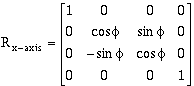 (12-2a)
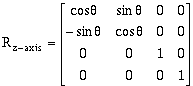 (12-2b)
or an arbitrary rotation about the XZ axis is:
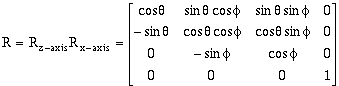 (12-2c)
and
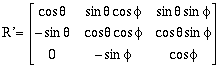 (12-2d)
T is an arbitrary translating in the x, y, or z direction and is defined as (Foley et al, 1990).
 (12-3a)
and
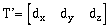 (12-3b)
and when combined with the rotation matrix R, yields:
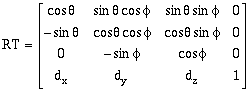 (12-4)
When T and R are substituted into equation 12-1 T' and R' are defined as the portions of matrix 12-4 defined as follows (Foley et al, 1990):
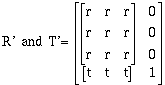 (12-5)
By applying equation 12-1, all real world points in data set can be translated into screen coordinates. The screen coordinates, x', y', and z', can now be solved and reduce to:
 (12-6a)
 (12-6b)
 (12-6c)
This transformation is called a parallel transformation which is described in the next section.
Hidden Surface and Line Removal:
The computer monitor or the printed page are two dimensional surfaces on
which many computer graphical techniques try to represent three-dimensional bodies.
Part of the problem in this transformation is determining what portions of the bodies
are visible or hidden from view. In some cases this can be a trivial process; if others it
is complex and computationally very expensive. This techniques described below review
some of the techniques used in this software package.
Parallel Transformation:
By translating world data coordinates into screen coordinates (with the z-axis
pointing out of the display) the relationship of which objects are in front of others can
be quickly determined (those with the highest z-value are the closest). Without the
transformation; instead of only two comparisons (x1 = x2 and y1 = y2), four
additional divisions are necessary; this is computationally expensive and should be avoided (Foley
et al, 1990).
Back to Front Drawing:
List priority algorithms sort the objects so that they be drawn in the correct
order from back to front; in this way objects further away are obscured as closer objects
are drawn over them (Foley et al, 1990). This method works quite well unless an object
can pierce or overlap and under lap another object. In the simple case, a Depth-Sort
Algorithm may be used. The idea here is that, as the closer objects are drawn, they
paint over objects to the rear which are not visible. Depending on the geometry of the
data set the order may be simple to determine (as with a rectangular mesh, see block in
chapter 13), or very complex (as with irregular finite-element meshes, see mesh
(Incomplete package)).
Surface Shading With Shaded Relief:
The use of surface shading is a useful technique to characterize or aid in the
visualization of a surfaces texture; it is also a useful technique for highlighting
structural trends, and low-relief features. This technique mimics low-sun-angle
photography, a popular remote sensing technique. One use in remote sensing is
lineament analysis (Lillesand and Kiefer, 1987), and computer simulated shading can
be used the same way. Computerized shading can mimic the sun's (light source) angle
over the surface, or it can place the sun in positions that would never occur in nature.
This can enhance features not otherwise observable.
The technique is rather simple. If the tangent vector to the surface points directly to (0o off sun angle) the light source (sun), that portion of the surface is colored white (It is receiving the maximum possible light from the light source). If the tangent vector to the surface points directly away (180o off sun angle) from the light source (sun), that portion of the surface is colored black (It is receiving the minimum possible light from the light source). Surfaces whose tangent vector lay somewhere in-between receive a proportionate amount or white light, or are assigned an appropriate gray value. The percent gray assigned for the surface location is defined as:
or
 ) / 2 (12-8)
where l is the light source vector, n is the vector normal to the surface, 0% gray = white, and 100% gray = black.
Slope-Gradient Determination:
As discussed in contour, this is an approximation method (See chapter 11,
Slope-Gradient Determination section for details) for determining the slope or gradient
of each cell within the grid.
Gómez-Hernández, J.J. and R.M. Srivastava, 1990, ISIM3D: An ANSI-C Three Dimensional Multiple Indicator Conditional Simulation Program, Computers in Geoscience, Vol. 16, No. 4, pp. 395-440.
Lillesand, T.M. and R.W. Kiefer, 1987, Remote Sensing and Image Processing, Second Edition, John Wiley and Sons, New York.
McDonald, M.G., and A.W. Harbaugh, 1984, A Modular Three-Dimensional Finite- Element Flow Model, U.S. Geological Survey OFR 83-875.
 (12-1)